Decoding USB-C: How to Identify the Right Cable for Your Devices
Every USB-C cable looks identical from the outside. Same oval port, same reversible plug, same black or white cable — and yet one will charge your laptop at 100W while another tops out at 5W and refuses to carry video at all. That gap is not a defect. It is by design, and it has caused more fried expectations than any other connector in recent memory.

What You Need to Know Before You Start
Why USB-C Is So Confusing — and Why That Is Not Your Fault
USB-C is a connector shape, not a specification. The spec running through that connector could be USB 2.0 (from 2000), USB 3.2, USB4, or Thunderbolt 4 — each with wildly different speed and power capabilities. The connector standardized the physical form, but nobody standardized what had to be inside the cable. That decision has haunted consumers ever since.
The power delivery side is equally layered. A cable might support USB Power Delivery (USB PD) at 60W but not at 100W. Some cables are rated for 240W under the newer USB PD 3.1 standard. Others max out at the old 5V/0.9A baseline — enough to trickle-charge a phone overnight, not enough to keep a laptop alive under load.
Before you grab a cable, you need to know three things about your device: what connector spec it expects, how much wattage it needs, and whether it requires data or video throughput. Without those three answers, you are guessing.
The Hidden Marker That Actually Tells You What a Cable Can Do
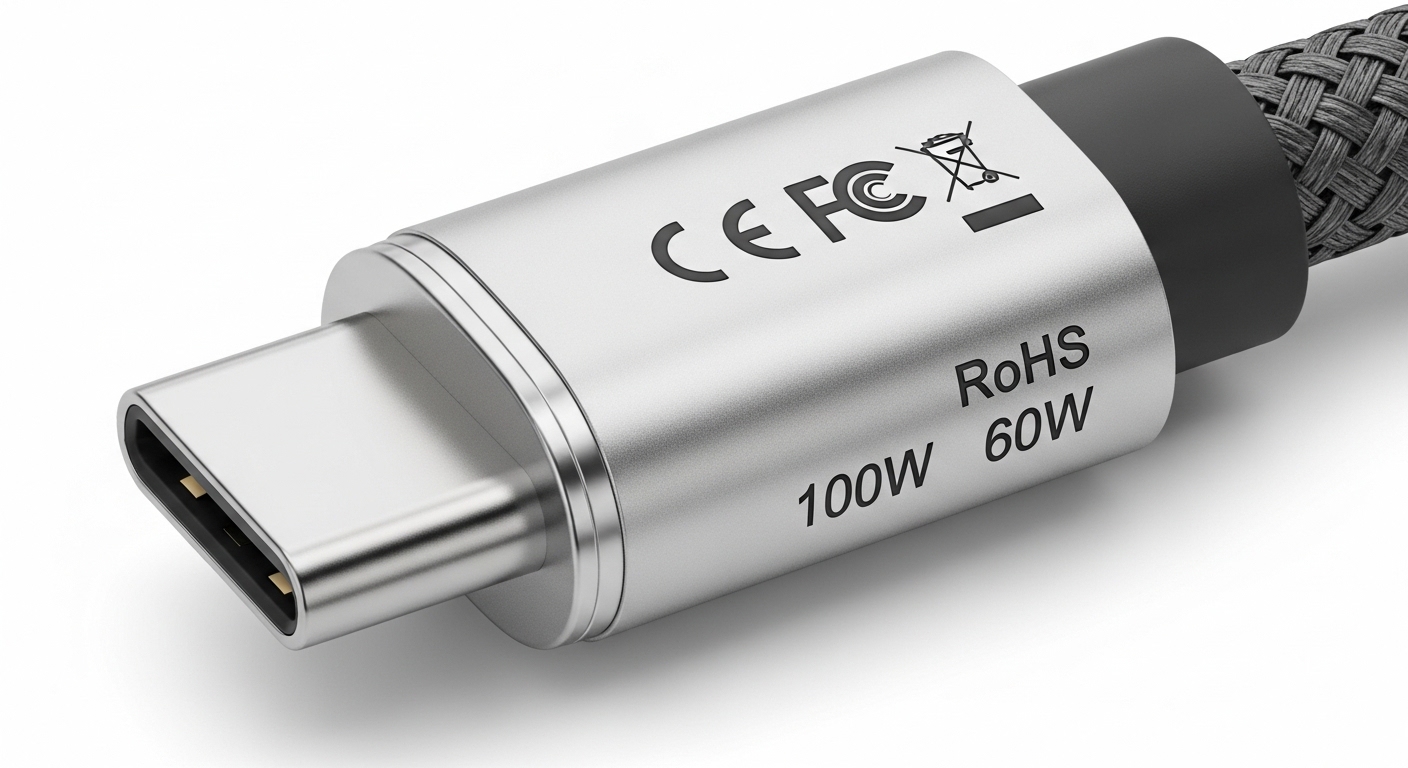
USB-IF (the USB Implementers Forum) introduced a set of certified logos that manufacturers are supposed to print on cables and packaging. A cable marked with a battery icon and '60W' supports USB PD up to 60W. One marked '240W' supports the newer extended power range. A cable showing a '10Gbps' or 'SuperSpeed' badge carries that data rate. Thunderbolt cables carry a lightning bolt icon.
The problem is that certification is voluntary. Plenty of cables ship with no markings at all, or with vague marketing language like 'fast charging compatible' that means almost nothing technically. If a cable has no logo and no spec printed on it, treat it as a USB 2.0, low-power cable until proven otherwise.
Step-by-Step Instructions for Identifying the Right USB-C Cable
Step 1 — Check Your Device's Power Requirement
Look at the original charger that came with your device. The wattage printed on it (or on the device's spec sheet) is your target. A typical smartphone might need 18W–45W. A mid-range laptop often sits between 45W and 65W. High-performance laptops can demand 100W or more, and under USB PD 3.1, some workstation-class machines push past 140W.
If you no longer have the original charger, check the manufacturer's website for the model's charging spec. Do not estimate based on port size or cable thickness alone — those are unreliable visual cues.
Step 2 — Determine Whether You Need Data, Video, or Just Power
A cable used only for charging does not need to carry a high data spec. But if you are connecting an external drive, a monitor, or a docking station, the cable's data and video capability matters enormously. USB 3.2 Gen 2 handles 10Gbps and can drive a display through DisplayPort Alt Mode. USB4 and Thunderbolt 4 cables support up to 40Gbps and can run two 4K monitors simultaneously from a single cable.
For a simple phone-to-charger connection, a USB 2.0 cable is perfectly fine — and often cheaper and more flexible. Buying a Thunderbolt 4 cable to charge your phone is like buying a freight truck to carry groceries.
A USB-C cable that carries 100W of power but only USB 2.0 data is not a compromise — it is a deliberate design choice. Power delivery and data throughput are negotiated separately inside the cable.
Step 3 — Read the Cable's Physical Markings
Turn the cable over and look at the molded plastic near the connector. Certified cables print their spec there. Look for: a wattage number (e.g., '100W'), a data speed (e.g., '10Gbps'), or a Thunderbolt lightning bolt. If you see nothing, open the packaging and check the box. If neither the cable nor the box has any spec printed on it, that cable almost certainly does not meet USB-IF certification standards.
One genuinely useful trick: Thunderbolt 3 and 4 cables are always active cables with chips inside, and they are noticeably stiffer and heavier than passive USB cables of the same length. If a cable feels unusually rigid and has a lightning bolt on it, it is almost certainly Thunderbolt-rated.
Step 4 — Use a USB-C Cable Tester if You Are Unsure
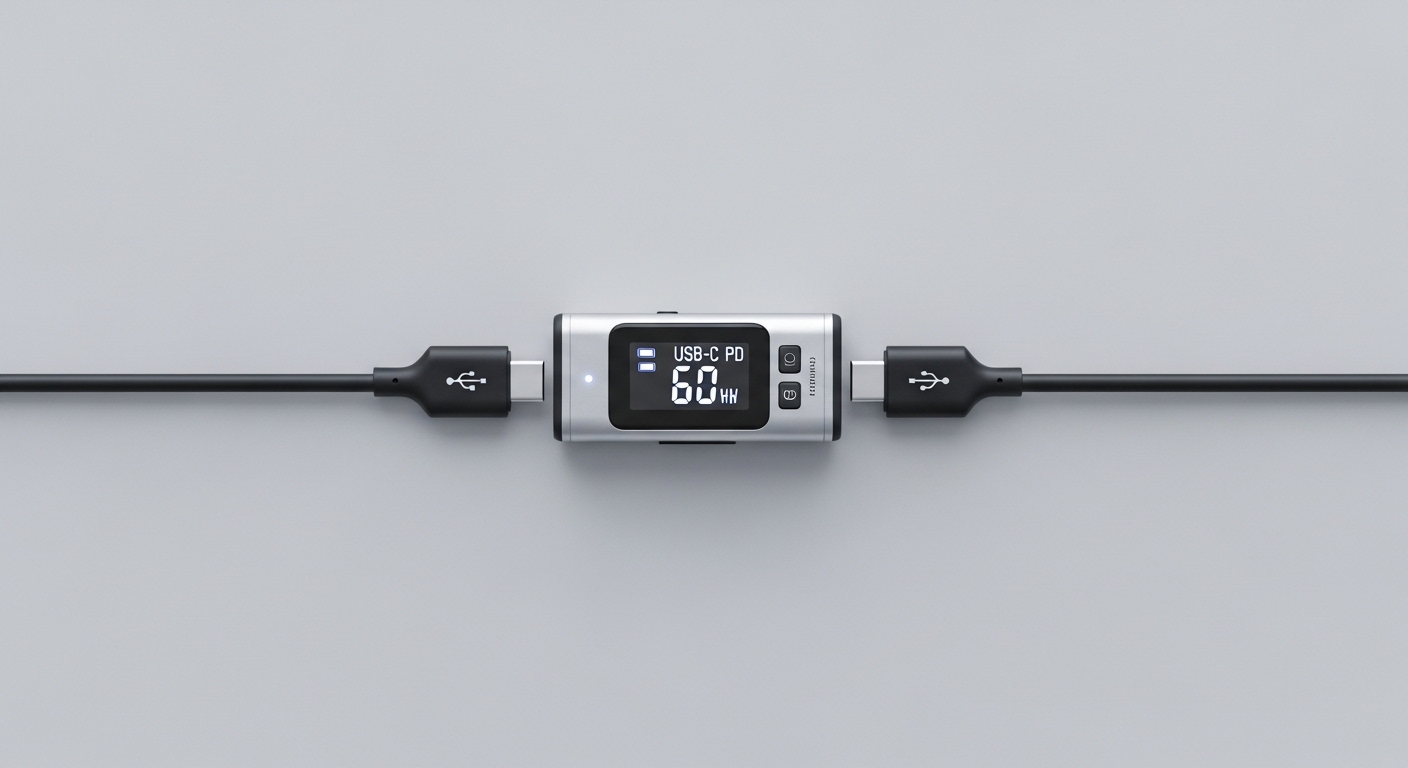
Small USB-C cable testers — devices that plug into both ends of a cable and report its capabilities on a tiny screen — are widely available and cost roughly the price of a decent lunch. They can confirm whether a cable supports USB PD, what its maximum wattage is, and sometimes whether it carries a SuperSpeed data signal. If you manage a home office with a mix of devices and cables, one of these testers pays for itself the first time it saves you from using an underpowered cable on a laptop.
Anyone who has ever grabbed the wrong cable from a drawer full of identical-looking cords and then wondered why their laptop battery kept dropping despite being 'plugged in' knows exactly why this tool exists.
Common Pitfalls to Avoid When Choosing USB-C Cables
Pitfall 1 — Assuming All Braided Cables Are High-Quality
Braided nylon sleeves look premium and do improve durability at the bend points. But braiding has nothing to do with electrical specification. A braided cable can still be a USB 2.0, 5W cable underneath all that woven nylon. The braid is a physical upgrade, not an electrical one.
Pitfall 2 — Buying the Cheapest Cable for High-Power Charging
Cables rated for 100W or higher carry significant current. A cable that is not properly rated for that load can overheat, damage the charging circuitry in your device, or in rare cases cause a fire. This is not hypothetical — there have been documented cases of uncertified cables causing device damage, which is partly why USB-IF certification exists. Stick to certified cables from reputable manufacturers for anything above 60W.
Cheap cables fail quietly. They do not spark dramatically — they just deliver less power than advertised, slowly degrade your battery, and leave you wondering why your laptop charges so slowly.
Pitfall 3 — Using a Short Cable for Long Thunderbolt Runs
Thunderbolt 4 passive cables are certified up to 0.8 meters (about 2.6 feet). Beyond that length, you need an active Thunderbolt cable with a repeater chip inside. Using a passive cable beyond its rated length can cause intermittent disconnections, display flicker, or data errors that are maddening to diagnose. The cable looks fine. The port looks fine. Everything looks fine — until it does not.
Pitfall 4 — Ignoring the Charger Side of the Equation
A 100W-rated cable connected to a 45W charger will only deliver 45W. The cable does not create power — it just carries what the charger provides. Conversely, a 45W-rated cable connected to a 100W charger will negotiate down to 45W automatically via USB PD handshaking. The cable is always the ceiling, not the floor.

Pro Tips to Speed Up Your USB-C Cable Selection
Build a Simple Cable Labeling System
Buy a pack of small adhesive cable labels or use colored heat-shrink tubing near the connector. Mark each cable with its max wattage and data spec — something like '100W / 10G' or '20W / 2.0'. This takes about ten minutes once and saves significant frustration every time you reach into a cable drawer. It sounds almost embarrassingly simple, but almost nobody does it.
Know the Three Cable Tiers You Actually Need
For most households, three cable types cover everything. First, a USB 2.0 cable rated for at least 60W handles phone charging and basic accessories. Second, a USB 3.2 Gen 2 cable rated for 100W covers laptop charging and external drives. Third, a Thunderbolt 4 cable handles monitors, docking stations, and anything that demands maximum bandwidth. You do not need a drawer full of mystery cables — you need three clearly labeled ones.
Check the E-Marker Chip for High-Power Cables
Any USB-C cable rated above 60W is required by the USB specification to contain an E-Marker chip — a tiny embedded circuit that communicates the cable's capabilities to the charger and device. If a cable claims to support 100W but has no E-Marker (your cable tester will confirm this), it is either mislabeled or non-compliant. The E-Marker is not optional at that power level; it is part of the spec.
(Opinion: The real scandal of USB-C is not that the spec is complicated — it is that the industry chose to make all cables look identical while allowing enormous variation in capability. A single visible color-coding standard, mandated at the connector level, would have prevented years of consumer confusion. That decision was never made, and we are all still paying for it.)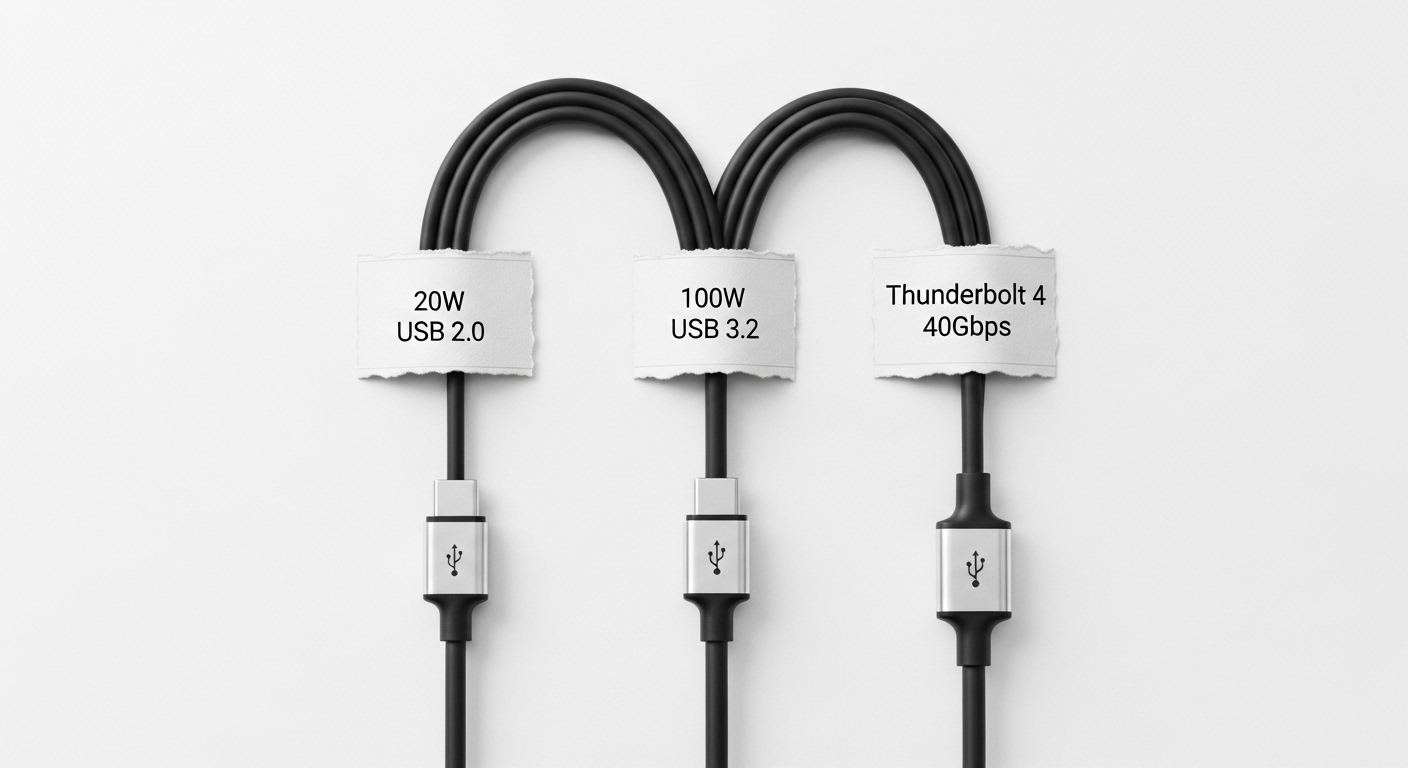
Frequently Asked Questions
Can I use a Thunderbolt 4 cable for regular USB-C charging?
Yes, Thunderbolt 4 cables are fully backward compatible with USB-C charging and data. They will work with any USB-C device. The only downside is cost — Thunderbolt 4 cables are significantly more expensive than standard USB cables, so using one purely for phone charging is overkill, not a problem.
Why does my laptop charge slowly even with a USB-C cable plugged in?
The most common cause is a cable that is not rated for the wattage your laptop needs. If the cable maxes out at 20W or 45W and your laptop requires 65W or more, the laptop will charge — just slowly, and possibly not fast enough to keep up with active use. Check the cable's wattage rating and match it to your charger's output.
Is there a way to tell if a USB-C cable supports video output without testing it?
Not reliably from appearance alone. Cables that support DisplayPort Alt Mode or Thunderbolt video are supposed to carry certification markings, but many do not. If video output matters to you, buy a cable explicitly marketed and certified for display use, or use a cable tester that checks for Alt Mode support. Guessing based on cable thickness or brand name is not reliable.
The USB-C connector succeeded at the one thing it set out to do: eliminate the frustration of plugging in a cable the wrong way. What it did not eliminate — and perhaps could not, given how many competing interests shaped the standard — is the deeper problem of a universal shape hiding a fractured ecosystem of capabilities. Every cable in your drawer is a small gamble until you know what is actually inside it. The connector won. The cable chaos just moved somewhere less visible.


Comments
Post a Comment