Essential Tips to Secure Your Home Wi-Fi Network
The average home router ships with a default admin password that takes about three seconds to look up online. Attackers know this. In fact, many home networks get compromised not through sophisticated hacking but through basic oversights that take less than ten minutes to fix. This guide walks you through exactly what to do — no networking degree required.

What You Need Before You Start Securing Your Wi-Fi
The Basic Access You'll Need
Before changing anything, you need access to your router's admin panel. This is usually reached by typing an IP address like 192.168.1.1 or 192.168.0.1 into a browser while connected to your home network. The exact address is printed on a sticker on the bottom of most routers.
You'll also need your current admin username and password. If you've never changed them, check that same sticker — or search your router's model number plus 'default credentials.' Write down what you find before you start, because you'll be changing several settings in sequence and it's easy to lose track.
Finally, do this from a laptop or desktop rather than a phone. Router admin panels are notoriously unfriendly on small screens, and some settings panels won't even render correctly on mobile browsers. Anyone who has tried to navigate a router menu on a phone knows the frustration.
Know Your Router Model
Different routers have different menu layouts, but the underlying settings are almost always the same. ISP-provided routers (the ones your internet company gave you) sometimes lock certain settings behind their own app. If that's your situation, the app is your admin panel — the browser method may not work.
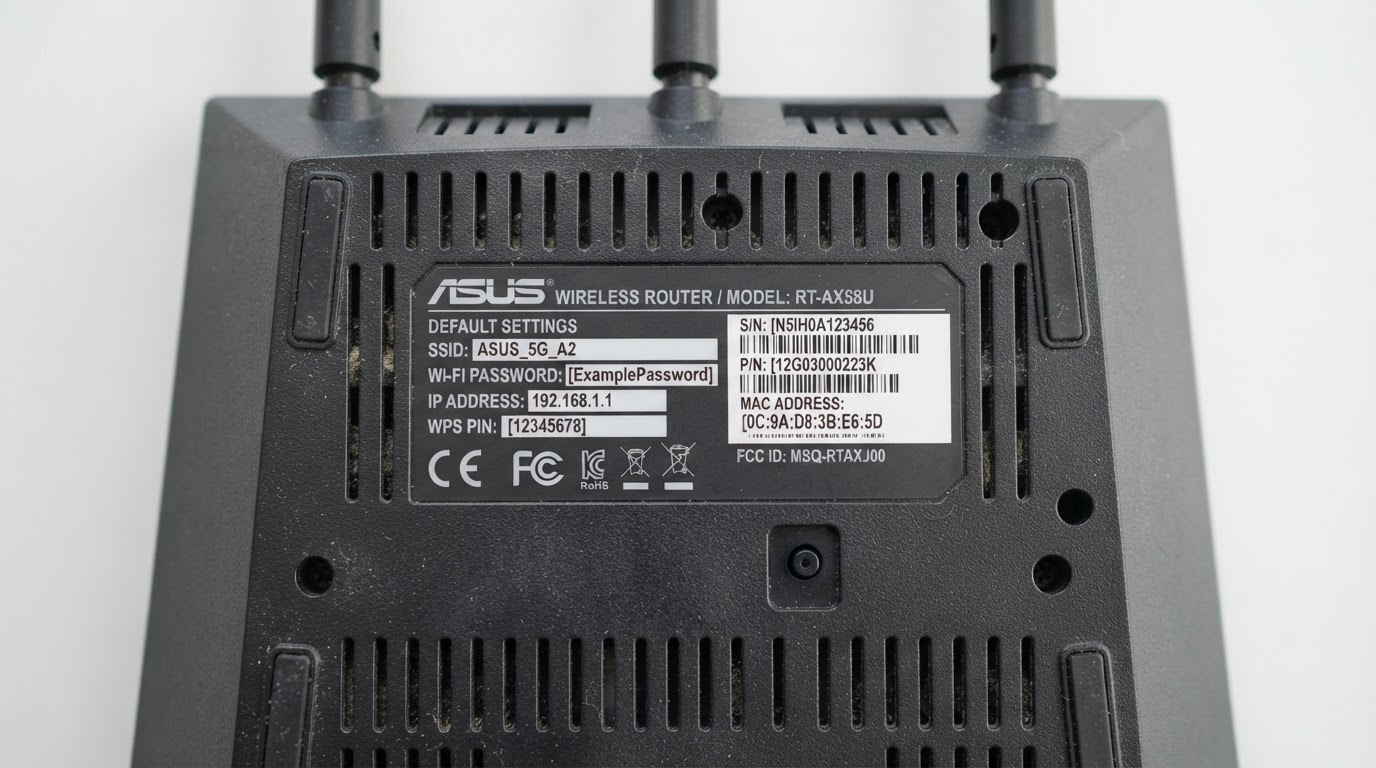
Step-by-Step Instructions to Lock Down Your Network
Step 1 — Change the Default Admin Password Immediately
Log into your router's admin panel and find the section labeled 'Administration,' 'System,' or 'Management.' Change the admin password to something long and unique — at least 16 characters, mixing letters, numbers, and symbols. This is the single highest-impact change you can make.
The default credentials for many popular router brands are publicly listed in manufacturer documentation. Routers from the same product line often share identical defaults across millions of units. That's not a bug — it's a design choice for ease of setup that creates a massive security hole.
Step 2 — Change Your Wi-Fi Network Name (SSID)
Your network name, called the SSID, shouldn't reveal your router brand or model. A name like 'NETGEAR_5G_2847' tells a nearby attacker exactly what hardware you're running and which known vulnerabilities to try. Rename it to something generic that doesn't identify you or your equipment.
Avoid using your name, address, or apartment number in the SSID. It sounds obvious, but a quick scan of any apartment building will turn up networks named after their residents. That's a social engineering risk as much as a technical one.
Step 3 — Set a Strong Wi-Fi Password and Use WPA3 Encryption
Navigate to your wireless security settings and look for the encryption protocol option. If your router supports WPA3, use it. If not, WPA2-AES is the acceptable fallback. Avoid WEP and WPA (the original version) entirely — both have been broken for years and offer essentially no real protection.
WPA2 with a weak password is still a weak lock. The encryption protocol only matters if the password itself is long and random enough to resist brute-force attacks.
Your Wi-Fi password should be at least 12–16 characters. A passphrase made of four or five random words is both strong and easier to type when guests ask for it. Avoid anything based on your address, birthday, or pet's name.
Step 4 — Disable WPS (Wi-Fi Protected Setup)
WPS is the feature that lets you connect a device by pressing a physical button on the router or entering an 8-digit PIN. The PIN method has a known vulnerability that allows an attacker within range to crack it in a matter of hours using freely available tools. Most security professionals recommend disabling WPS entirely.
Find the WPS setting under your wireless configuration menu and turn it off. You won't miss it — connecting devices manually with a password takes about 30 extra seconds and is dramatically safer.
Step 5 — Update Your Router's Firmware
Router firmware updates patch security vulnerabilities, and most routers don't update themselves automatically by default. In your admin panel, look for a 'Firmware Update' or 'Software Update' section, usually under 'Advanced' or 'Administration.' Check for updates and install any that are available.
Some routers now support automatic firmware updates — enable this if yours does. A router running firmware from several years ago is carrying known, unpatched vulnerabilities that are documented in public security databases.
Step 6 — Set Up a Guest Network for Visitors and Smart Devices
Most modern routers let you create a separate guest network. Put visitors on it, and — this is the part most people skip — put your smart home devices there too. Smart TVs, thermostats, security cameras, and voice assistants are notoriously slow to receive security patches. Isolating them from your main network means a compromised smart bulb can't reach your laptop or NAS drive.
A guest network isn't just for guests. It's a containment zone for every device you don't fully trust — which, realistically, includes most smart home hardware.
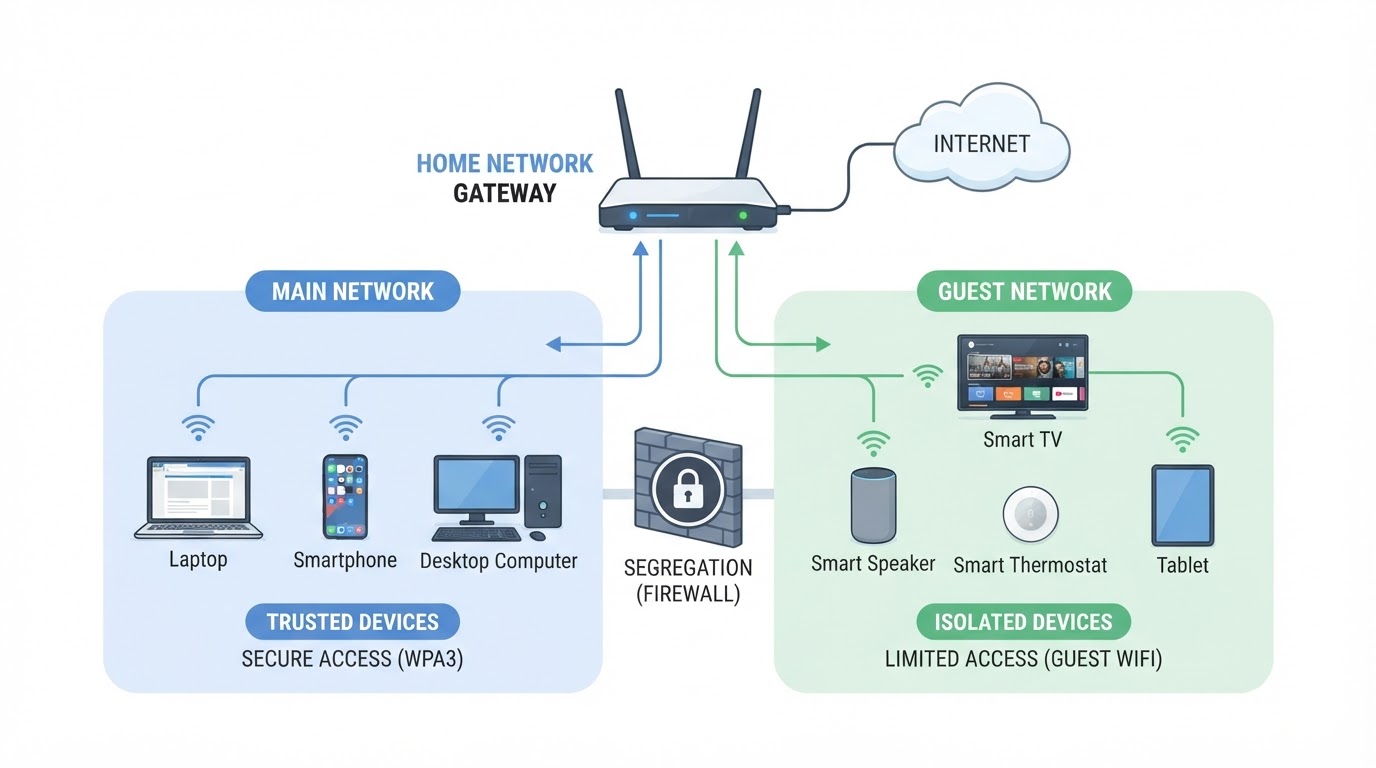
Common Pitfalls to Avoid When Securing Your Router
Assuming 'Hidden SSID' Means 'Invisible'
Some guides suggest hiding your network name so it doesn't appear in nearby Wi-Fi lists. This feels secure but isn't. Any basic network scanning tool will detect a hidden network the moment a device connects to it — the SSID is still broadcast in connection packets. Hiding your SSID adds friction for your own devices without meaningfully stopping anyone who's actually trying to find your network.
Forgetting to Recheck After an ISP Visit
If a technician from your internet provider ever replaces your router or resets it remotely, your custom settings may be wiped. After any ISP service visit, log back in and verify that your passwords, encryption settings, and guest network are still in place. This happens more often than people realize, and it's an easy thing to forget.
Using MAC Address Filtering as a Primary Defense
MAC address filtering lets you create a whitelist of devices allowed on your network. It sounds airtight, but MAC addresses can be spoofed in minutes using standard software. An attacker who can see your network traffic can grab an approved MAC address and clone it. Use MAC filtering only as a supplementary layer, never as a primary security measure.
Pro Tips to Speed Things Up and Go Further
Use a Password Manager for Your Router Credentials
Store your new admin password and Wi-Fi password in a password manager rather than a sticky note on the router. The sticky note method defeats the entire purpose of changing the default — anyone who physically accesses your router also gets your credentials. A password manager keeps them accessible without broadcasting them.
Check Which Devices Are Connected
Most router admin panels have a 'Connected Devices' or 'DHCP Client List' section. Review it occasionally. If you see a device you don't recognize, it's worth investigating — either it's a forgotten smart device, or it's someone who shouldn't be there. Some routers let you name each device, which makes future audits much faster.
Consider DNS-Level Filtering
Switching your router's DNS server to a privacy-focused option — such as a filtering DNS service — can block known malicious domains before any device on your network even makes a connection. This is a more advanced step, but it's done entirely within the router's settings and doesn't require installing anything on individual devices. Look for the DNS settings under your router's WAN or Internet configuration section.
Disable Remote Management
Many routers have a 'Remote Management' or 'Remote Access' feature that lets you log into the admin panel from outside your home network. Unless you have a specific reason to use this, disable it. It's an open door that most home users never need and rarely remember is there.
(Opinion: The single most underrated step on this entire list is the guest network for smart devices. Most people set up a guest network for visitors and stop there, but the real value is isolating the growing pile of poorly-secured IoT hardware that now lives in the average home. Until manufacturers are held to consistent security standards, network segmentation is the most practical protection available to ordinary users.)
Frequently Asked Questions
How often should I change my Wi-Fi password?
There's no fixed rule, but changing it when you suspect unauthorized access, after a houseguest you no longer trust had it, or after a router reset makes practical sense. A strong, unique password doesn't need to be rotated constantly — the bigger priority is making sure it's strong in the first place.
Does my router's firewall actually do anything useful?
Yes, though it's often misunderstood. Most consumer routers include a basic NAT firewall that blocks unsolicited incoming connections by default — this is genuinely useful and is already active on most home routers without any configuration. What it doesn't do is inspect outbound traffic or protect you from threats that originate inside your network, like a compromised device reaching out to a malicious server. It's a useful layer, not a complete solution.
Can my neighbor actually get into my Wi-Fi if they really wanted to?
With WPA2 or WPA3 and a strong password, it would require significant time and computing resources to crack your network through brute force — making it impractical for casual attackers. The realistic threat for most home users isn't a determined neighbor with cracking tools; it's weak passwords, outdated firmware, or enabled WPS that makes the job trivially easy. Fix those three things and you've eliminated the vast majority of realistic risk.
Every device you add to your home network — another phone, a new smart speaker, a kid's tablet — is another potential entry point. The steps above don't make your network impenetrable, but they move you from 'easy target' to 'not worth the effort,' which is exactly where you want to be. The uncomfortable truth is that most home network breaches aren't sophisticated attacks — they're opportunistic ones that succeed because the basics were never done.



Comments
Post a Comment