Browse Safely: How to Protect Yourself on Public Wi-Fi
Public Wi-Fi at a coffee shop or airport feels like a convenience, but the network you just joined might have a stranger sitting three tables away watching every unencrypted packet you send. This isn't paranoia — it's a well-documented attack called a 'man-in-the-middle,' and it requires almost no technical skill to pull off with freely available tools. The good news is that protecting yourself takes less than five minutes of setup, and most of it is free.
What You Need Before You Start Browsing on Public Wi-Fi
The Tools That Actually Matter
You don't need a cybersecurity degree. You need three things: a reputable VPN app installed and ready to go, a browser that handles HTTPS enforcement automatically, and a basic understanding of which activities are genuinely risky versus which ones are mostly fine. That last point trips people up more than anything else.
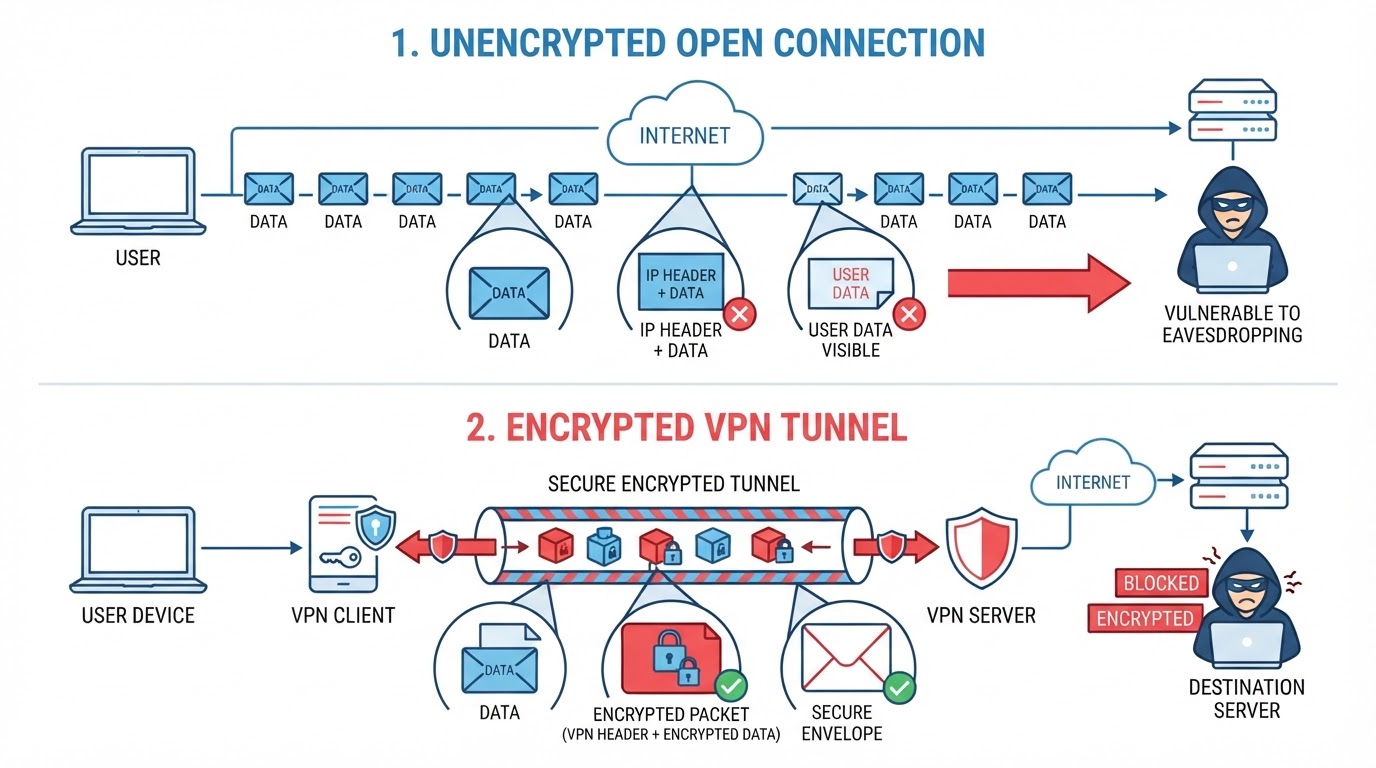
A VPN — Virtual Private Network — encrypts your traffic before it leaves your device, so even if someone intercepts it on the local network, they see gibberish. Free VPNs exist, but many of them log your data and sell it, which defeats the entire purpose. Paid options from well-established providers generally cost a few dollars a month and are worth it if you travel regularly or work remotely from cafes.
Your browser matters too. Modern versions of Chrome, Firefox, Edge, and Safari all support HTTPS-only mode, which forces encrypted connections wherever possible. Enable it before you need it — not after you've already typed your password somewhere.
A VPN doesn't make you invisible — it makes your traffic unreadable to anyone on the same local network. That's the specific threat public Wi-Fi creates, and it's the one a VPN directly solves.
One Thing Most Guides Skip
Check that your device isn't set to auto-connect to open networks. Both Windows and macOS have a setting that will silently rejoin any network with a name your device has seen before. Attackers sometimes set up rogue hotspots named 'Starbucks' or 'Airport Free WiFi' precisely because your laptop will connect without asking. Turn off auto-connect for open networks — it takes about thirty seconds in your Wi-Fi settings.

Step-by-Step Instructions for Staying Safe on Public Wi-Fi
Step 1 — Connect to the Right Network
Before you click anything, confirm the network name with a staff member or the official signage. Rogue hotspots often have names that look almost right — 'CoffeeShop_Guest' versus 'CoffeeShop Guest.' One character difference, and you're handing your traffic to whoever set it up. This sounds tedious, but it takes ten seconds.
Step 2 — Launch Your VPN Before Opening Any App
Open your VPN app and connect to a server before you open your browser, email client, or anything else. Many apps — including email clients and cloud sync tools — start sending data the moment they detect a network connection. If your VPN isn't running first, that early traffic is exposed. Some VPN apps have a 'kill switch' feature that blocks all traffic until the VPN tunnel is established; enable it if yours offers it.
Step 3 — Enable HTTPS-Only Mode in Your Browser
In Chrome, go to Settings, then Privacy and Security, then Security, and toggle on 'Always use secure connections.' Firefox has the same option under Settings, Privacy and Security, HTTPS-Only Mode. This won't protect you on every site — some older sites still don't support HTTPS — but it catches the majority of cases where your browser might silently downgrade to an unencrypted connection.
Step 4 — Avoid High-Stakes Activities When Possible
Even with a VPN running, some activities carry more risk than others on public networks. Online banking, filing taxes, or accessing work systems with sensitive data are worth saving for a trusted network at home or a cellular connection. A VPN is strong protection, but 'strong' isn't the same as 'perfect.' Cellular data — your phone's 4G or 5G connection shared as a hotspot — bypasses the public Wi-Fi problem entirely.
Step 5 — Sign Out and Forget the Network When You're Done
When you leave, sign out of any accounts you accessed and tell your device to forget the network. On a phone, this is usually a long-press on the network name. On a laptop, it's in your Wi-Fi settings under 'Manage Known Networks' or the equivalent. This prevents the auto-connect problem from coming back next time you're near the same location.
Common Pitfalls That Undermine Public Wi-Fi Security
Trusting the Padlock Icon Too Much
The padlock in your browser's address bar means the connection between your browser and the website is encrypted. It does not mean the website is trustworthy, and it doesn't protect you from a rogue access point intercepting traffic before it even reaches the site. Phishing sites use HTTPS too — the padlock just means the scam is delivered securely.
Forgetting About Background Apps
Your email client, cloud backup service, and messaging apps all communicate in the background. If your VPN drops mid-session — which happens — those apps keep sending data over the unprotected connection. This is exactly why the kill switch setting matters. Anyone who has worked remotely from a hotel and had their VPN silently disconnect knows how easy it is to miss.
The kill switch is the feature most people skip during VPN setup. It's also the one that actually saves you when the VPN drops unexpectedly.
Using the Same Password Everywhere
If an attacker does capture a credential — even a hashed one — on a public network, and you reuse that password, the damage multiplies instantly. A password manager with unique passwords for every account limits the blast radius of any single breach. This is good practice everywhere, but it's especially relevant when you're on networks you don't control.

Pro Tips to Speed Things Up and Reduce Friction
Set Your VPN to Auto-Connect on Untrusted Networks
Most paid VPN apps let you define 'trusted' networks — your home Wi-Fi, your office — and automatically connect the VPN on everything else. Set this up once and you never have to remember to launch the VPN manually again. It's the single highest-leverage configuration change you can make.
Use Your Phone as a Hotspot Instead
For genuinely sensitive tasks, skip public Wi-Fi entirely and tether to your phone's cellular connection. Modern cellular networks use strong encryption between your device and the carrier's infrastructure, and you're not sharing the connection with strangers in the same room. Data usage is the main constraint, but for a ten-minute banking session, it's negligible.
Keep Your OS and Apps Updated
A significant portion of real-world attacks on public networks exploit known vulnerabilities in outdated software — vulnerabilities that patches already fixed. Keeping your operating system and apps current isn't glamorous advice, but it closes doors that attackers actively look for. The update notification you've been dismissing for two weeks is probably patching something real.
(Opinion: The security industry sometimes overcomplicates this topic to sell enterprise products. For most people, a paid VPN with auto-connect, HTTPS-only mode, and a password manager covers the vast majority of realistic public Wi-Fi threats. You don't need a firewall appliance in your laptop bag.)

Frequently Asked Questions
Is HTTPS enough to protect me on public Wi-Fi without a VPN?
HTTPS encrypts the content of your connection to a specific website, which is meaningful protection. But it doesn't hide which sites you're visiting — a network observer can still see your DNS queries and destination IP addresses. A VPN encrypts all of that too, which is why it provides a more complete layer of protection on untrusted networks.
Can a hotel or cafe network see what I'm doing even with a VPN?
With a VPN active, the network operator can see that you're connected to a VPN server and roughly how much data you're transferring — but not the content of that data or which sites you're visiting. The VPN tunnel makes your traffic opaque to anyone on the local network, including the network operator themselves.
Does using incognito mode protect me on public Wi-Fi?
No. Incognito mode prevents your browser from saving your history locally — it does nothing to protect your traffic on the network. Your data still travels over the same connection in the same way. This is one of the most persistent misconceptions about browser privacy, and it's worth correcting firmly.
The uncomfortable reality is that public Wi-Fi security isn't a problem that gets solved once and stays solved — it's a habit you maintain. The rogue hotspot named after a familiar coffee chain, the VPN that quietly dropped while you were checking your bank balance, the email client that synced in the background before the tunnel was up: these are ordinary failures that happen to careful people. The steps above don't eliminate risk, but they raise the cost of attacking you high enough that most opportunistic attackers will move on to an easier target sitting two seats away.



Comments
Post a Comment