Declutter Your Inbox: Practical Tips to Manage Email Storage Effectively
The average office worker receives over 100 emails per day — and most of them are never deleted. They just sit there, quietly consuming storage until one morning you get that dreaded 'your storage is almost full' warning and suddenly nothing sends or receives. Managing email storage isn't glamorous, but ignoring it has real consequences.

What You Need Before You Start Decluttering Your Email
Know Your Storage Situation First
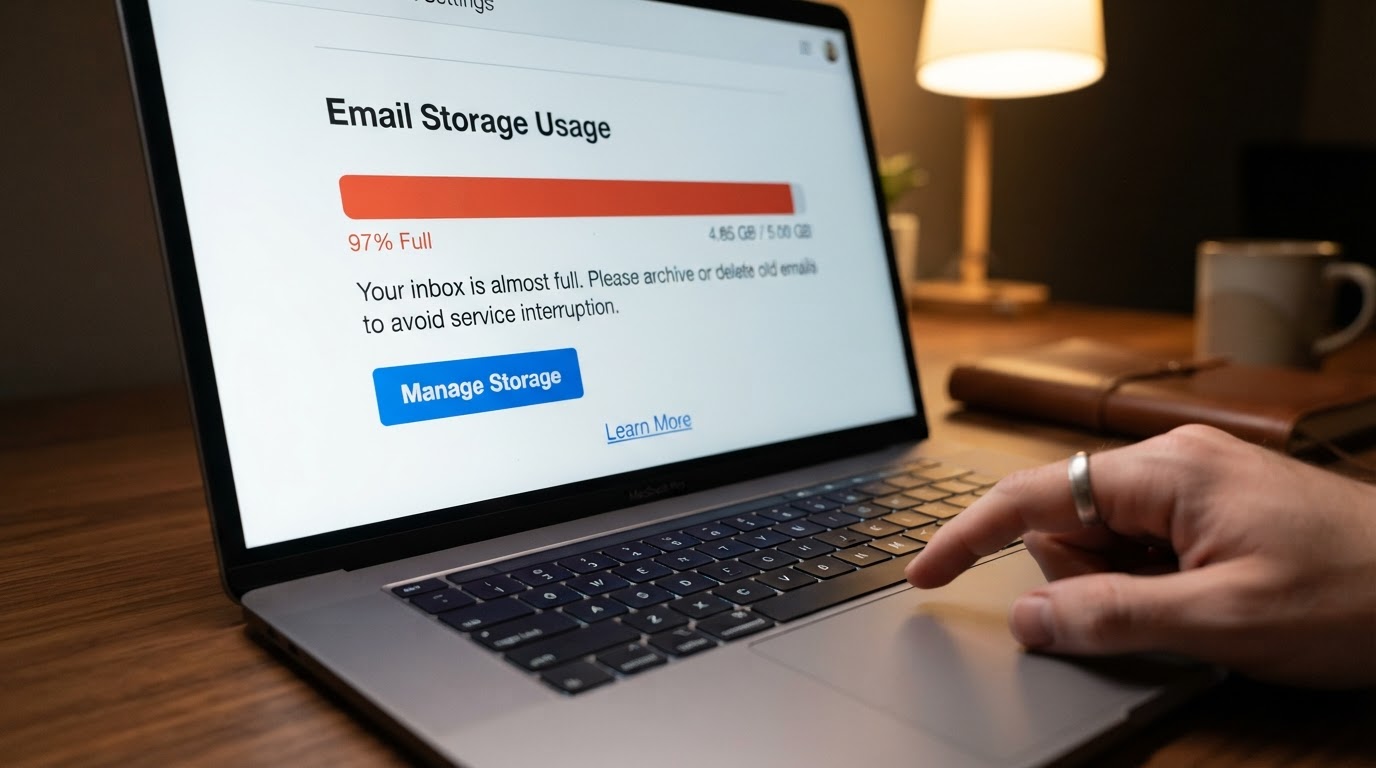
Before deleting a single message, check how much storage you're actually using. In Gmail, you can find this at the bottom of the main inbox page — it shows a live percentage of your 15GB Google account storage. Outlook users can check storage via account settings or the web version at outlook.com. Knowing your number gives you a target to work toward.
One thing most people miss: email storage is often shared across services. Gmail's 15GB, for example, covers Gmail, Google Drive, and Google Photos combined. So if your Drive is packed with old project files, your inbox cleanup alone won't solve the problem. Check all connected services before assuming email is the only culprit.
Decide What 'Clean' Means to You
Some people want inbox zero — every message filed, archived, or deleted. Others just want enough breathing room to function without storage warnings. Neither approach is wrong, but picking one before you start saves a lot of mid-cleanup paralysis. Set a realistic goal: maybe it's getting under 50% storage used, or clearing everything older than two years.
Step-by-Step Instructions to Clear Email Storage Fast
Step 1 — Search and Destroy Large Attachments
Attachments are the single biggest driver of bloated email storage. A few dozen emails with 10MB attachments will eat through storage faster than thousands of plain-text messages. In Gmail, search has:attachment larger:10MB to instantly surface the worst offenders. In Outlook, sort by size in any folder view to find the heaviest emails immediately.
Here's the counterintuitive part: you don't need to keep the email to keep the file. Download any attachment you actually need to local storage or cloud storage, then delete the email. Most people hold onto emails 'just in case' when the attachment is the only thing they'd ever revisit.
Attachments — not message volume — are almost always the real storage villain. One email with a 25MB video attachment costs more space than 2,500 plain-text messages.
Step 2 — Unsubscribe Before You Delete
Deleting promotional emails without unsubscribing first is like bailing out a boat without plugging the hole. Use Gmail's built-in 'Unsubscribe' link that appears next to the sender name in promotional emails, or use a service like your email client's built-in filter tools to bulk-unsubscribe. The goal is to stop the inflow before you spend time on the backlog.
After unsubscribing, search for the sender's address and select all matching emails, then delete in bulk. This two-step approach — unsubscribe, then purge — is far more effective than one-off deletions.
Step 3 — Purge Old Sent Mail and Drafts
Sent mail is the folder almost nobody thinks about. Every email you've ever sent with an attachment is sitting in your Sent folder, consuming exactly as much space as the original. In Gmail, search in:sent has:attachment and sort by size. You'll often find years of sent reports, presentations, and photos that nobody needs anymore.
Drafts are smaller but worth clearing too. Abandoned drafts accumulate silently, and some email clients store multiple auto-saved versions of the same draft. A quick sweep of the Drafts folder takes two minutes and is easy to overlook.
Step 4 — Handle the Spam and Trash Folders
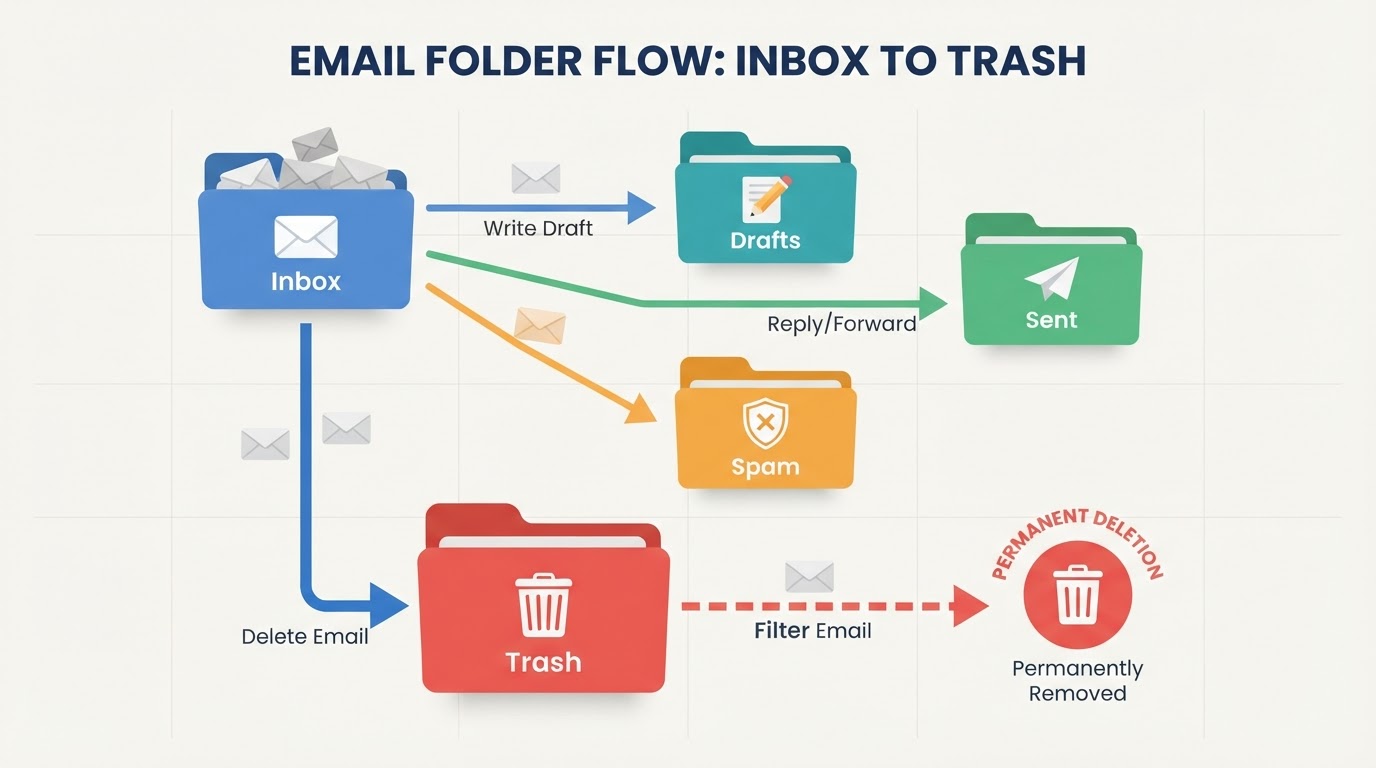
Gmail automatically deletes messages in the Spam folder after 30 days by default, but it's still wise to empty it manually during a cleanup to free up space immediately. The Trash folder works similarly — items sit there for 30 days before permanent deletion. If you've just done a big purge, manually emptying Trash right away reclaims that storage immediately rather than waiting out the countdown.
Step 5 — Archive Strategically, Don't Just Hoard
Archiving moves email out of your inbox view but keeps it in your account — it does not free up storage. This is a common misconception. Archiving is useful for organization, but if your goal is reclaiming space, you need to actually delete. Reserve archiving for emails you have a genuine reason to keep: tax-related correspondence, legal confirmations, receipts for major purchases.
Archiving feels productive but changes nothing about storage. If the goal is space, the only move is deletion.
Common Pitfalls to Avoid When Managing Email Storage
Skipping the Spam Folder
As mentioned above, Gmail automatically clears Spam after 30 days, but waiting for that cycle means your storage stays inflated in the meantime. During any active cleanup session, manually emptying Spam is a 10-second task that pays off immediately. Don't skip it just because it feels like it handles itself.
Deleting Without Downloading What You Need
The biggest cleanup regret is deleting an email and realizing a week later that the attachment was the only copy of something important. Before any bulk deletion, do a quick scan for anything that might matter: contracts, receipts, photos, software license keys. Download those files first. Then delete freely.
Ignoring Shared Storage Across Platforms
If you use Google Workspace or Microsoft 365, your email storage may be tied to a broader organizational plan. Clearing your inbox might not affect your quota if the admin has set different limits per user. Check with your IT department or account admin before assuming a cleanup will fix a storage warning in a work account.

Pro Tips to Speed Up Your Email Cleanup Routine
Use Search Operators Like a Power User
Gmail's search operators are genuinely powerful and most people never use them. Beyond has:attachment larger:10MB, you can search before:2022/01/01 to find everything older than a specific date, or from:newsletter@example.com to isolate a specific sender. Combining operators — like has:attachment before:2021/01/01 — lets you surgically target the oldest, heaviest emails in seconds.
Outlook has similar functionality through its Advanced Search panel. The point is to stop scrolling manually and start using the search bar as a scalpel.
Set Up Filters to Prevent Future Buildup
Filters are the long-term solution. In Gmail, you can create a filter that automatically deletes or archives emails from specific senders the moment they arrive — without them ever touching your inbox. This works well for automated notifications, newsletters you can't fully unsubscribe from, or internal system alerts you never read anyway.
Schedule a Monthly 15-Minute Sweep
The reason inboxes get catastrophically full is that nobody does small maintenance. A 15-minute monthly session — empty trash, delete large attachments from the past month, clear spam — prevents the kind of multi-hour cleanup that feels overwhelming. Anyone who has faced a 40,000-message inbox knows that getting there didn't happen overnight.
(Opinion: The real problem with email clutter isn't laziness — it's that email clients are designed to make keeping messages feel safer than deleting them. A tiny bit of friction on the delete button, and suddenly you've got a decade of newsletters. Clients that defaulted to auto-expiring low-priority mail would solve this faster than any productivity tip.)
Frequently Asked Questions
Does archiving email free up storage space?
No. Archiving in Gmail and Outlook moves messages out of your inbox view but keeps them in your account storage. The only way to actually reclaim storage is to permanently delete messages and then empty the Trash folder. Archiving is useful for organization, not for storage management.
What happens if I delete emails from a shared work account?
In most corporate email environments, deleting your own emails only affects your personal mailbox — it doesn't impact shared mailboxes or other users' inboxes. However, some organizations have retention policies that prevent permanent deletion for compliance reasons. Check with your IT administrator before doing a large-scale cleanup on a work account.
Can I recover emails after emptying the Trash folder?
Once you manually empty the Trash in Gmail or Outlook, recovery becomes very difficult for regular users. Gmail does have a backend recovery option that Google support can sometimes assist with within a short window, but this is not guaranteed. The safest approach is to review what's in Trash before emptying it, especially after a large bulk deletion.
A clean inbox isn't really about productivity or peace of mind — though those are real side effects. It's about maintaining a communication tool that actually works when you need it. The moment your email stops sending because storage is full is almost always the worst possible moment for that to happen. The inbox you ignore today has a way of becoming an urgent problem at exactly the wrong time.



Comments
Post a Comment