Beyond the Specs: How Does Computer RAM Really Work?
Your computer can have the fastest processor on the market and still feel sluggish — and RAM is often the reason. Random Access Memory is one of those components everyone knows they need more of, but almost nobody understands what it actually does, or why the numbers on the spec sheet matter in ways that aren't obvious. The story is more interesting than the sticker price suggests.
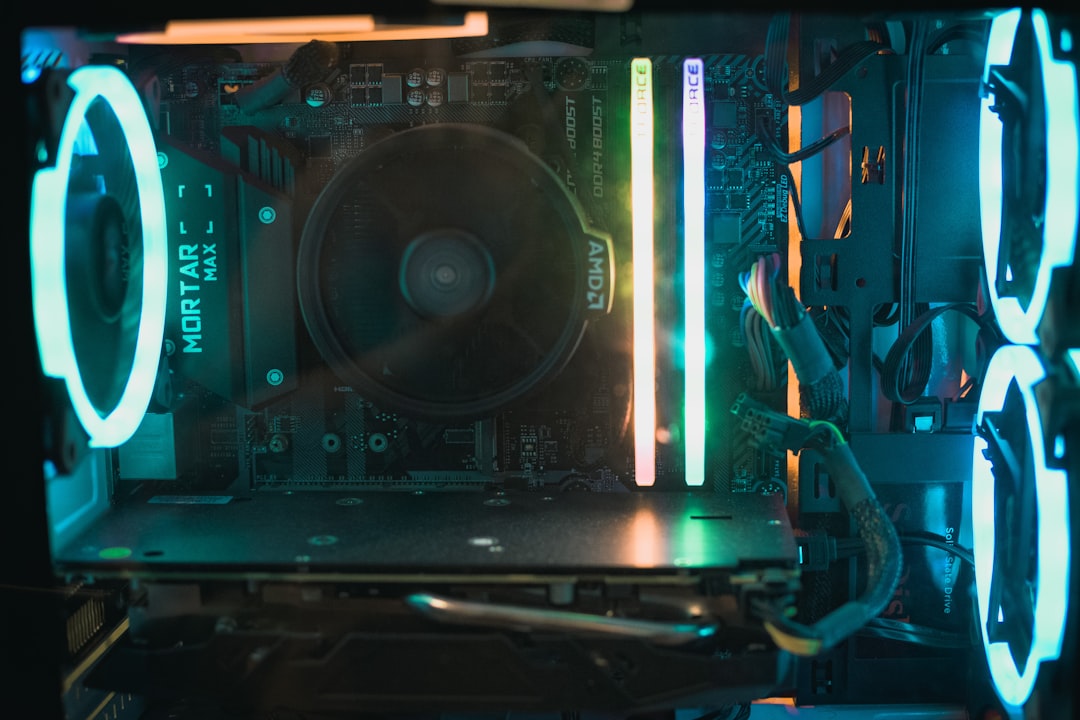
What RAM Actually Is — Not Just 'Temporary Storage'
The Workbench Analogy (and Why It Falls Short)
The classic explanation is that RAM is your computer's 'workbench' — storage is the filing cabinet, RAM is the desk where you spread things out. That's not wrong, but it undersells what's happening. RAM isn't just a holding area; it's the primary interface between your processor and every piece of data it touches in real time.
Every program you open, every browser tab you load, every game level that renders — all of it gets pulled from long-term storage and written into RAM first. The CPU doesn't go rummaging through your SSD mid-task. It works almost exclusively from RAM, which is why capacity and speed both matter.
The counterintuitive part: RAM is volatile. The moment power cuts, everything in it vanishes. That's not a bug — it's a fundamental property of how the technology works, and it's directly tied to why RAM can be so fast in the first place.
DRAM: Capacitors and the Constant Refresh Problem
Modern system RAM is Dynamic RAM, or DRAM. Each bit of data is stored as a tiny electrical charge in a capacitor paired with a transistor. The problem is that capacitors leak. Left alone, the charge drains away and the data disappears — so the memory controller has to continuously refresh every cell, thousands of times per second, just to keep the data intact.
This refresh cycle is one of the hidden costs of DRAM performance. During a refresh, those rows of memory are briefly unavailable. Engineers have spent decades designing around this constraint, and it's one reason RAM architecture is more complex than it looks from the outside.
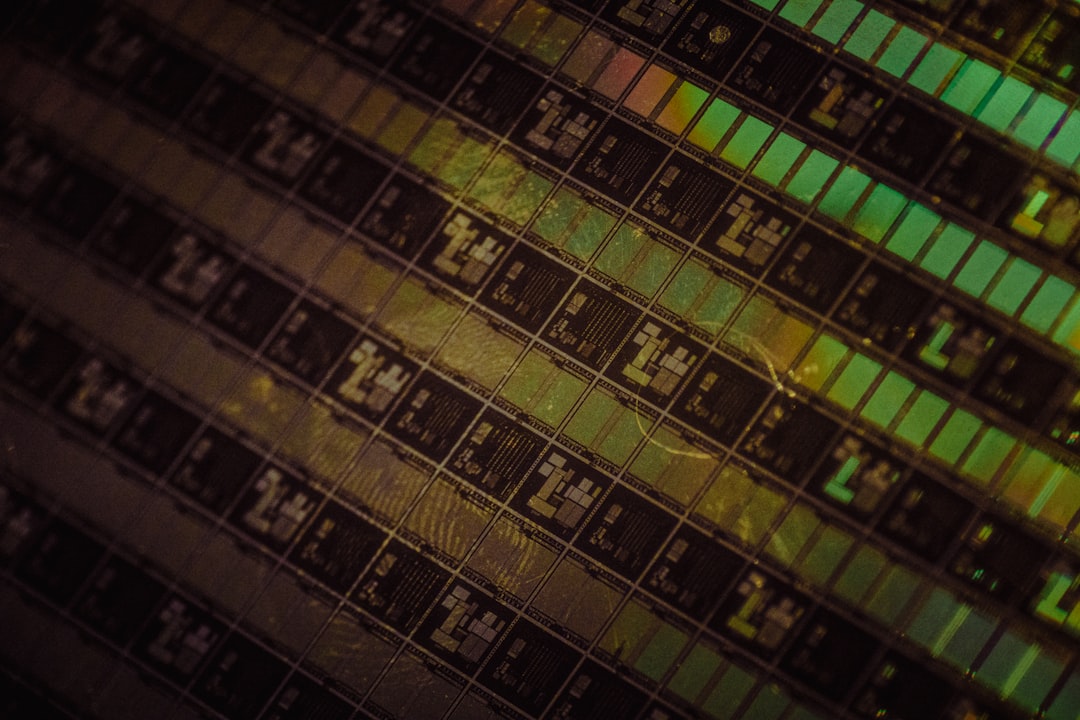
How RAM Physically Stores and Retrieves Data
Rows, Columns, and the Grid Architecture
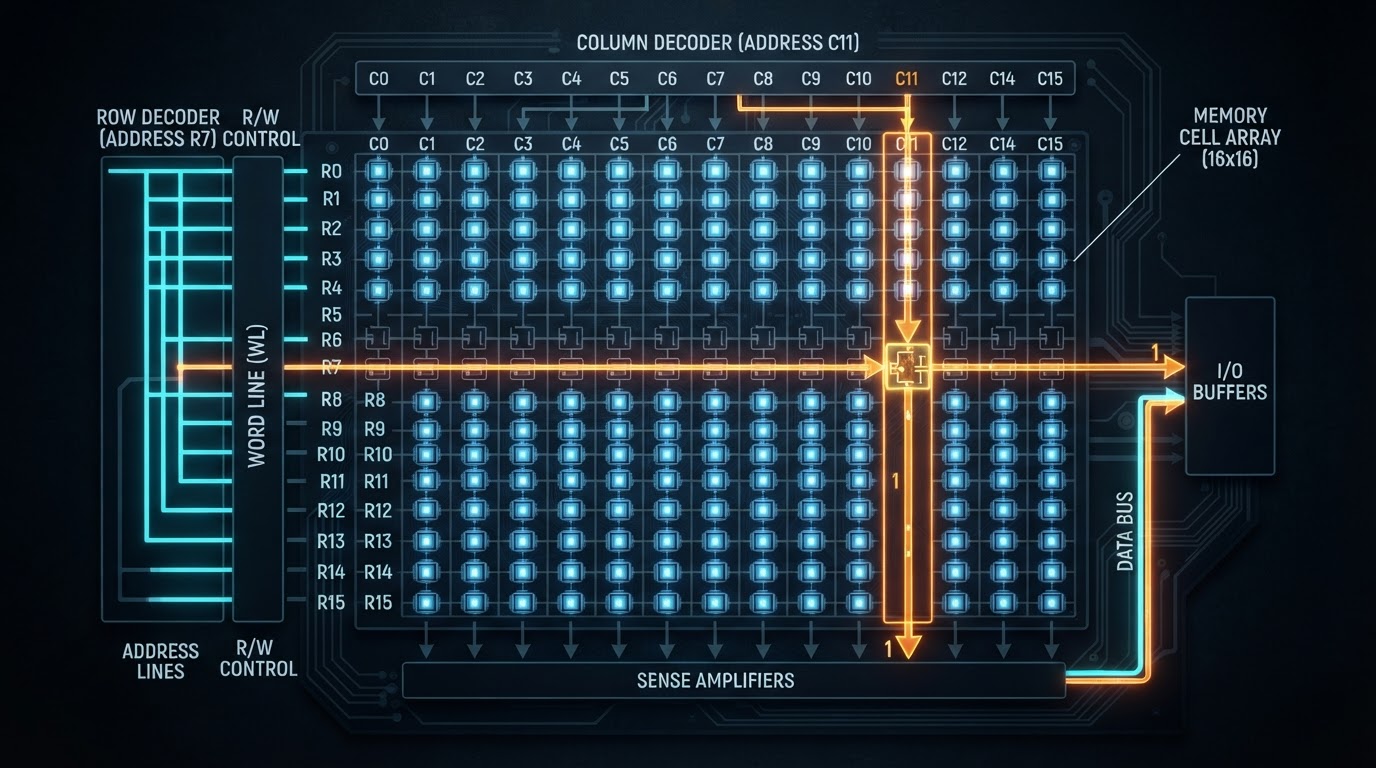
Inside a DRAM chip, memory cells are arranged in a grid — rows and columns. To read a single byte, the memory controller activates an entire row (called a 'row activation'), copies it into a temporary buffer called the row buffer, then selects the specific column it needs. If the next request happens to be in the same row, the data is already in the buffer and retrieval is fast. If it's in a different row, the controller has to close the current row, open the new one, and start over.
This is why sequential memory access is dramatically faster than random access, even in RAM. The name 'Random Access Memory' refers to the ability to address any location directly — not to the idea that all accesses are equally fast. That distinction trips up a lot of people.
Channels, Ranks, and Why Dual-Channel Matters
A single RAM stick communicates with the CPU through a memory channel — essentially a data highway. Modern motherboards support dual-channel or quad-channel configurations, which means the memory controller can talk to two or four sticks simultaneously, effectively doubling or quadrupling the bandwidth available.
Installing two sticks instead of one isn't just about having more capacity. Running in dual-channel mode can meaningfully improve performance in bandwidth-hungry tasks like video editing, large game worlds, or anything that moves a lot of data quickly. Anyone who has ever wondered why their system felt faster after adding a second stick — that's the channel configuration doing its job.
Dual-channel RAM doesn't double your speed across the board, but in bandwidth-limited workloads, the difference can be dramatic enough to feel like a hardware upgrade you didn't pay for.
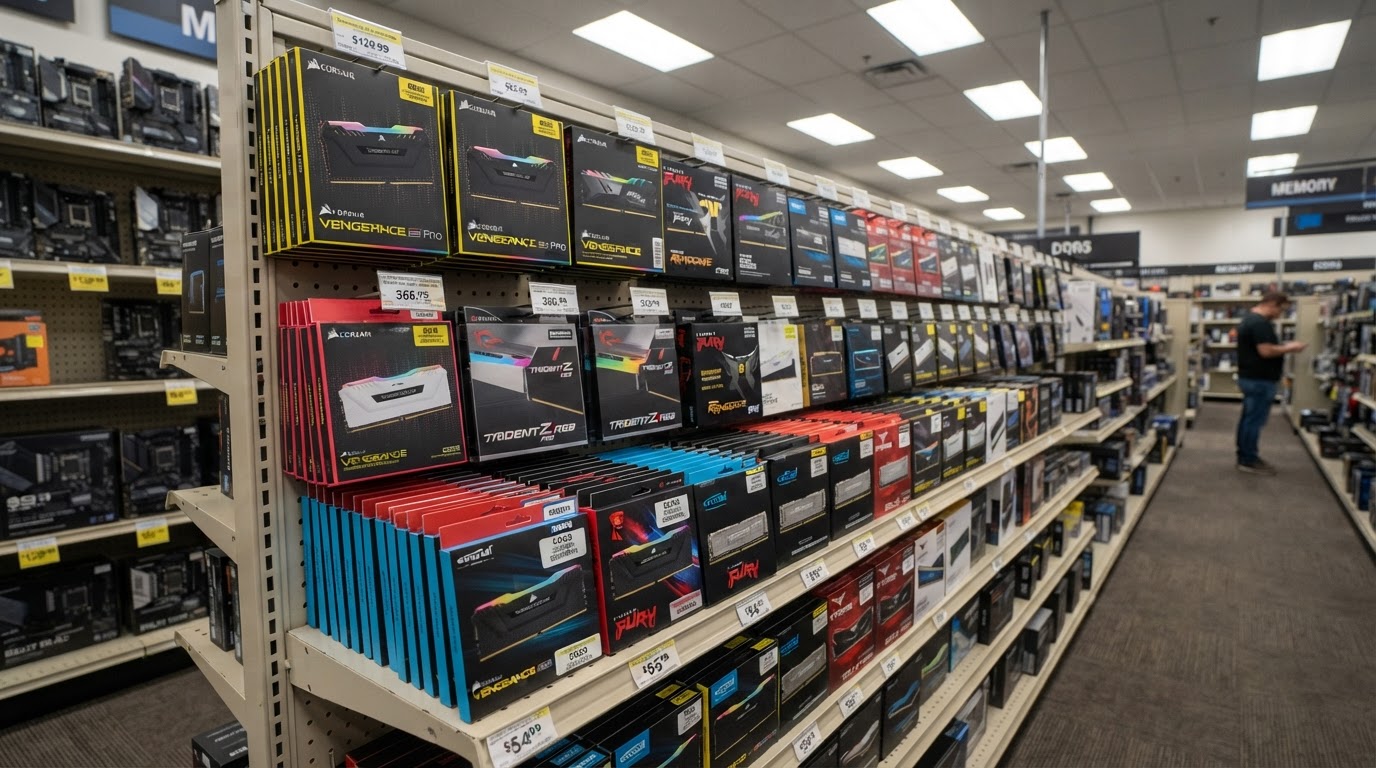
How RAM Speed and Latency Actually Work Together
What DDR Numbers Actually Mean
DDR stands for Double Data Rate — the memory transfers data on both the rising and falling edge of the clock signal, which effectively doubles throughput without doubling the clock frequency. DDR4 and DDR5 are generational standards, each bringing higher transfer rates, lower operating voltages, and architectural changes under the hood. DDR5, for instance, splits each module into two independent channels internally, which is a significant structural change from DDR4.
The speed rating you see — DDR5-6000, for example — refers to the number of megatransfers per second. Higher is generally faster, but that number alone doesn't tell the whole story.
CAS Latency: The Number Most Buyers Ignore
CAS Latency (CL) is the number of clock cycles the RAM needs to wait before it can begin delivering requested data. A kit rated CL30 waits 30 cycles. The catch is that as frequencies increase, each clock cycle becomes shorter — so a high CL number at a high frequency can actually represent less real-world delay than a low CL at a lower frequency.
The formula to find the true latency in nanoseconds is: (CAS Latency * 2000) / Transfer Rate. For a DDR5-6000 CL30 kit, that's (30 * 2000) / 6000 = 10 nanoseconds. That's a useful sanity check when comparing kits with different speed and CL combinations — the nanosecond number is the honest comparison.
A DDR5-6000 CL30 kit and a DDR5-4800 CL24 kit might look similar on paper — but the nanosecond calculation reveals which one actually responds faster.
Where RAM Fits in the Bigger Memory Hierarchy
The Cache Layers Between RAM and the CPU
RAM is fast, but it's not the fastest memory in your system. Between the CPU cores and main RAM sit multiple levels of cache — L1, L2, and L3 — each smaller and faster than the last. L1 cache on a modern processor might hold only a few hundred kilobytes but can respond in just a handful of clock cycles. RAM, by comparison, might take 60–100 cycles to respond to a request.
The CPU is constantly trying to predict which data it will need next and pulling it into cache before the request arrives. When it guesses right, performance is excellent. When it guesses wrong — a 'cache miss' — the processor stalls and waits for RAM to respond. Reducing cache misses is one of the core challenges in CPU design, and it's why memory access patterns in software matter as much as raw hardware specs.
How Much RAM Do You Actually Need?
For most general computing tasks in 2026, 16GB is a comfortable baseline. Heavy multitaskers, video editors, and anyone running virtual machines will feel the difference at 32GB. Gaming has crept up too — some modern titles with large open worlds and high-resolution texture packs push past 12GB of VRAM and system RAM simultaneously.
The edge case worth knowing: running out of RAM doesn't crash most systems immediately. The OS starts using a portion of your storage drive as 'virtual memory' — a swap file or page file. It works, but the performance difference is stark. Storage, even fast NVMe SSD storage, is orders of magnitude slower than RAM, and the system will feel noticeably sluggish the moment it starts swapping.
(Opinion: The 8GB baseline that some budget laptops still ship with in 2026 is genuinely inadequate for a modern browser with a dozen tabs open, let alone anything more demanding. It's a cost-cutting decision that users end up paying for in frustration.)
Frequently Asked Questions
Does faster RAM actually make a noticeable difference in everyday use?
For most everyday tasks — web browsing, documents, email — the difference between mid-range and high-end RAM speeds is small enough that you won't feel it. Where faster RAM shows up clearly is in tasks that move large amounts of data: video editing, 3D rendering, and games with large open worlds. Integrated graphics (like those in AMD Ryzen processors) benefit significantly from faster RAM because they share the same memory pool as the CPU.
Can you mix RAM sticks from different brands or speeds?
Technically yes, but the system will run all sticks at the speed of the slowest one. Mixing sticks can also cause stability issues, particularly if the memory controller struggles to reconcile different timings or voltages. For best results, use a matched kit — two or four sticks sold together and tested to work as a set.
Why does RAM show less capacity than advertised in Windows?
This catches people off guard. Windows reports 'usable' RAM, which excludes memory reserved by the system for hardware — including the GPU if it shares system memory, and a small amount reserved by the BIOS or firmware. A machine with 16GB installed might show 15.9GB or slightly less as usable. If the number is significantly lower, it's worth checking BIOS settings to ensure RAM isn't being over-allocated to integrated graphics.
RAM sits at a strange intersection: it's the component most people upgrade first, yet few understand what they're actually buying. The specs on the box — frequency, CAS latency, capacity — are real levers that affect real performance, but only if you know which workloads they influence. A system that runs out of RAM and starts hitting the page file doesn't just slow down — it changes category entirely, from a fast machine to a frustrating one. That threshold is worth knowing before you hit it.



Comments
Post a Comment