How to Maximize Your Phone's Battery Life: Science-Backed Tips
Lithium-ion batteries start degrading the moment you first charge them — and most phones lose a measurable chunk of their original capacity within the first year of normal use. That's not a flaw; it's chemistry. But the speed at which your battery ages is almost entirely within your control. The tips below aren't folk wisdom or forum speculation — they're grounded in how lithium-ion cells actually behave under charge, heat, and discharge cycles.
What You Need Before You Start Optimizing Battery Life
Understanding What Actually Kills a Lithium-Ion Battery
Before changing any habits, it helps to know what you're fighting. Lithium-ion batteries degrade through two main mechanisms: cycle aging (the wear from charging and discharging) and calendar aging (degradation that happens just from time and heat, even when the phone sits unused). Most people focus only on charge cycles, but calendar aging — especially heat-accelerated calendar aging — is often the bigger culprit in everyday use.
A "charge cycle" counts as one full 0–100% equivalent discharge, not one plug-in session. Topping up from 70% to 90% uses only a fraction of a cycle. This distinction matters enormously for the strategies below.
Research from battery scientists consistently points to two conditions that accelerate degradation fastest: sustained high temperatures and keeping the battery at very high or very low states of charge for extended periods. Fix those two things and you've done most of the work.
Check Your Phone's Current Battery Health
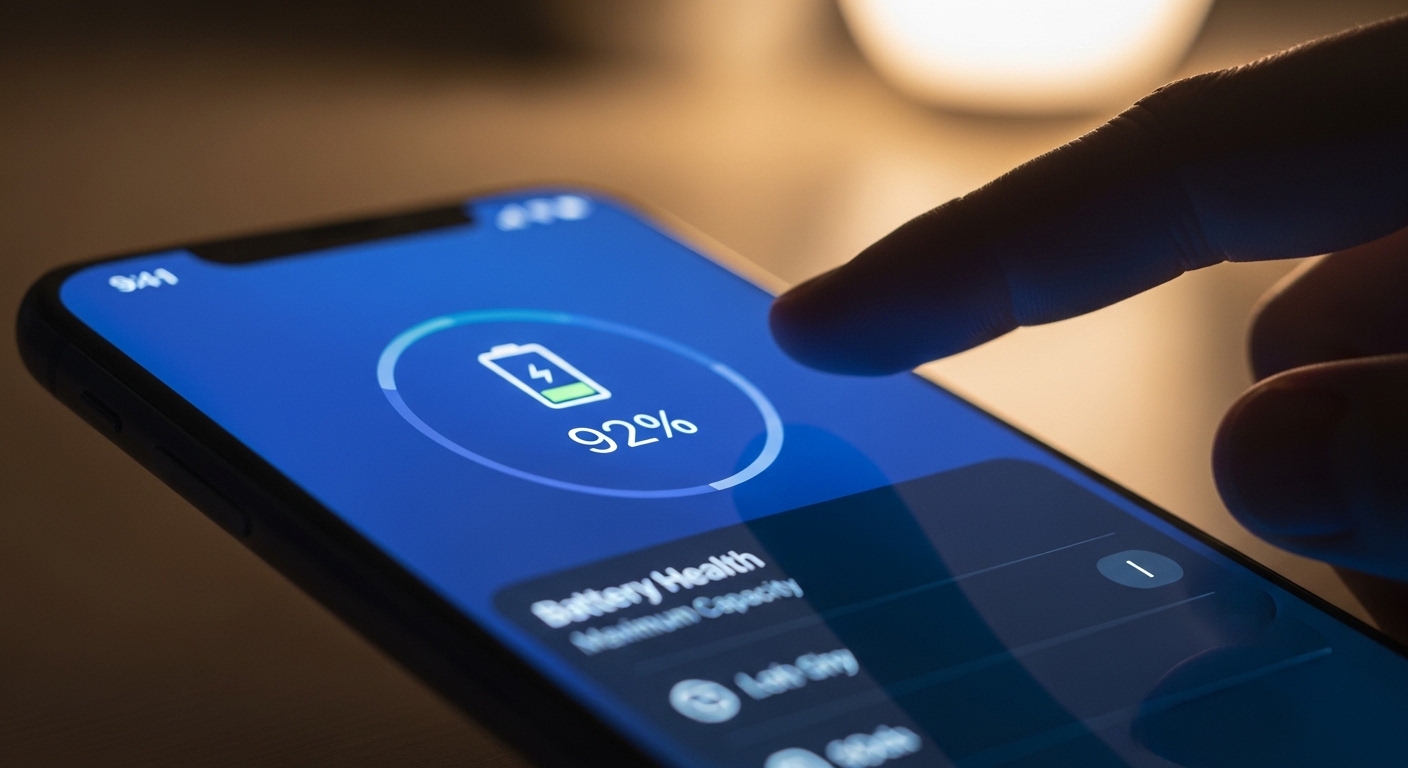
On iPhones running recent iOS versions, go to Settings > Battery > Battery Health & Charging to see your current maximum capacity percentage. Android phones vary by manufacturer — Samsung, for instance, includes a battery diagnostic inside the device care settings. Knowing your baseline lets you measure whether these strategies are actually working over the coming months.
Step-by-Step Instructions to Maximize Battery Longevity
Step 1 — Keep Your Charge Between 20% and 80%
This is the single highest-impact change you can make. Lithium-ion cells experience the most electrochemical stress at the extremes of their charge range. Keeping the battery in the 20–80% window dramatically reduces that stress. Some battery researchers describe this range as the "sweet spot" where the chemistry operates most comfortably.
In practice, plug in before you hit 20% and unplug — or use a charge-limiting feature — before you reach 100%. Both Apple and Samsung now include built-in charge limit options (often called "Optimized Charging" or "Charging Limit") that cap charging at 80% automatically. Enable whichever version your phone offers.
Step 2 — Manage Heat Aggressively
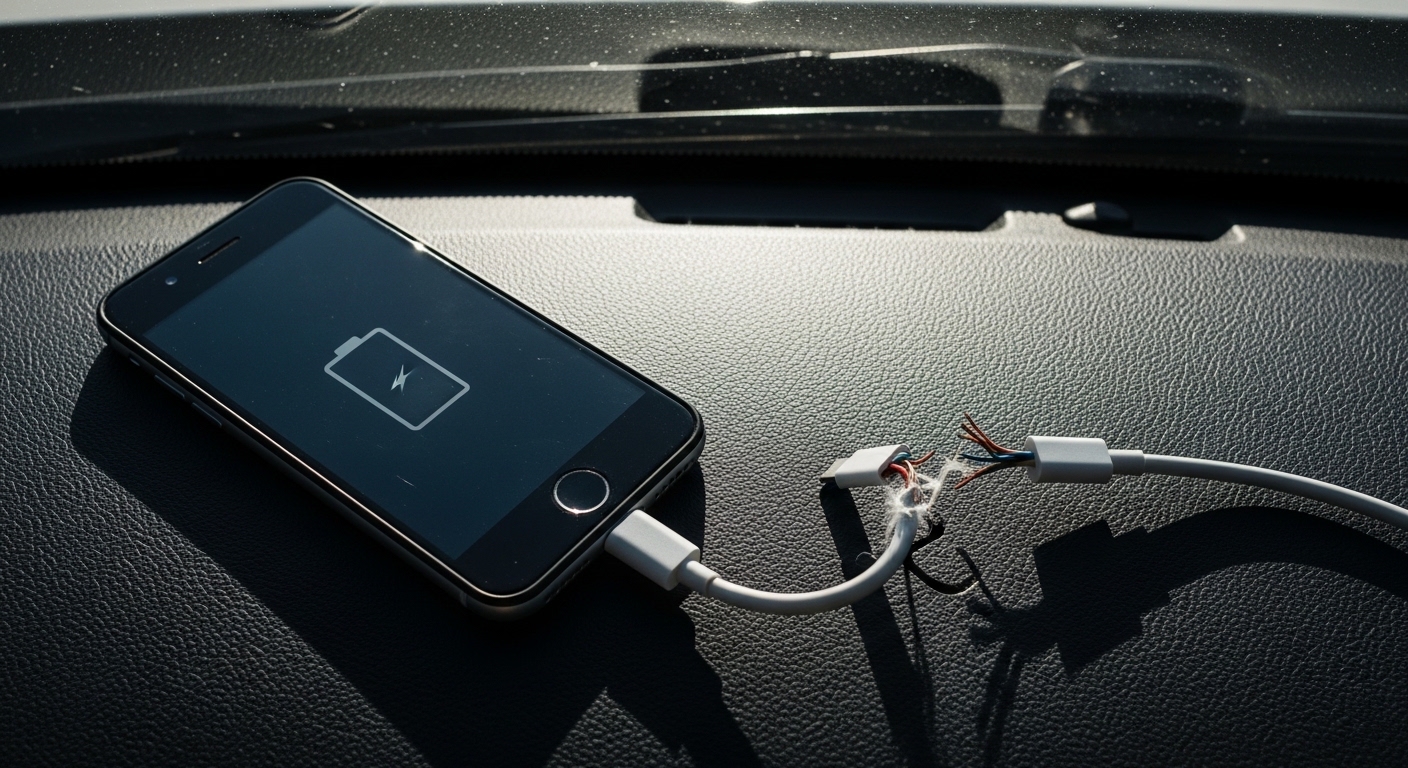
Heat is the single fastest way to age a lithium-ion battery. Research suggests that sustained temperatures above roughly 35°C (95°F) can accelerate capacity loss significantly compared to operating at room temperature. This means: don't leave your phone on a car dashboard in summer, don't charge it under a pillow or inside a thick case, and be aware that intensive gaming or video streaming while charging creates a double heat load.
If your phone feels hot during charging, remove the case. The case traps heat that would otherwise dissipate. This one habit alone can make a meaningful difference over a year of use.
Heat is a battery's worst enemy — a phone left on a hot car dashboard for an afternoon can do more long-term damage than weeks of normal charge cycles.
Step 3 — Avoid Overnight Charging Without a Charge Limit
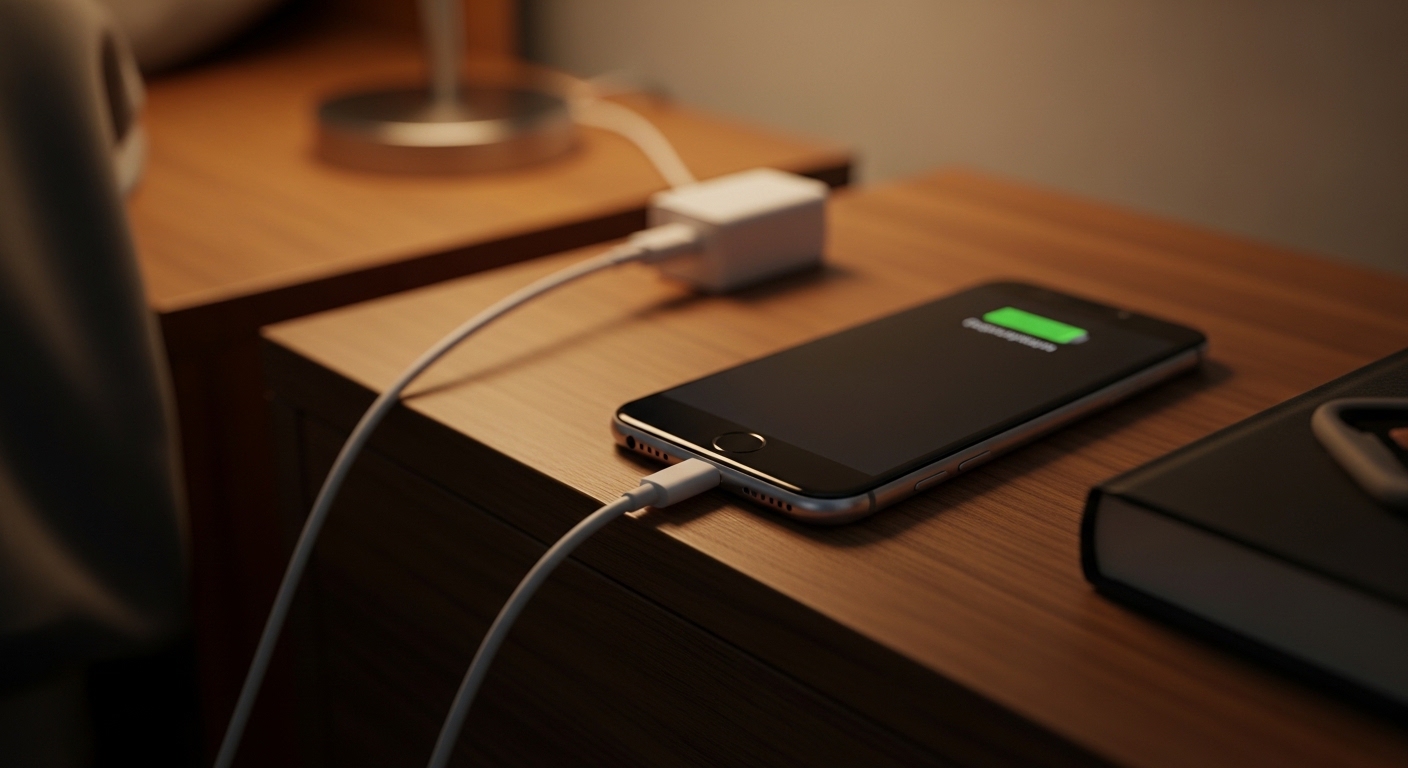
Plugging in overnight and leaving the phone at 100% for six or seven hours is a classic calendar-aging scenario. The battery sits fully charged, warm from the trickle current, for hours. Modern phones with optimized charging features partially solve this by learning your wake-up time and delaying the final charge push until just before you need it. But if your phone lacks this feature, setting an alarm to unplug — or using a smart plug with a timer — is a practical workaround.
Step 4 — Reduce Screen Brightness and Background Activity
The display is typically the largest single drain on a smartphone battery. Dropping brightness from maximum to a comfortable mid-level can extend screen-on time noticeably. Auto-brightness does a reasonable job of this automatically, but many people find their phones default to higher brightness than necessary indoors.
Background app refresh, location services running constantly, and push email all add up. Go through your app permissions and disable always-on location access for apps that don't genuinely need it. On most phones, switching from "Always" to "While Using" for location-heavy apps like maps makes a real difference without affecting usability.
Step 5 — Use the Right Charger for the Right Situation
Fast charging is convenient, but it generates more heat inside the battery than slower charging does. For overnight or desk charging when you're not in a hurry, using a slower charger (or a lower-wattage setting if your phone supports it) is gentler on the cells. Save the fast charger for when you genuinely need a quick top-up before heading out.
Wireless charging is also worth understanding: it's generally less efficient than wired charging and produces more heat at the battery, which is why some manufacturers limit wireless charging speeds. Using wireless charging as your primary method every night isn't ideal for long-term battery health, even if it's convenient.
Common Pitfalls to Avoid When Trying to Save Battery Life
Pitfall 1 — Obsessively Force-Closing Apps
This is one of the most persistent myths in smartphone use. Force-closing apps from the recent apps tray does not meaningfully save battery life on modern iOS or Android. In fact, relaunching an app from scratch often uses more energy than letting the operating system manage it in a suspended state. The OS is already very good at pausing background apps — your manual intervention usually makes things worse, not better.
Pitfall 2 — Letting the Battery Hit Zero Regularly
Fully draining a lithium-ion battery to 0% puts it under significant electrochemical stress. Occasional deep discharges are fine — and some phones recommend one every few months to recalibrate the battery meter — but making it a daily habit accelerates wear. The 20% floor mentioned in Step 1 exists precisely to avoid this.
Regularly draining your phone to zero doesn't "train" the battery — it just ages it faster. That idea belongs to an older nickel-cadmium era of battery tech.
Pitfall 3 — Ignoring Software Updates
Operating system updates frequently include power management improvements. Apple, for example, has released iOS updates that specifically improved how the system manages background processes and charge cycles. Skipping updates to avoid "slowdowns" — a concern that itself has become largely outdated — means missing genuine battery efficiency gains.
Pro Tips to Speed Up Battery Optimization Results
Use Low Power Mode Strategically, Not Just in Emergencies
Low Power Mode (or Battery Saver on Android) is usually treated as a last resort when the battery hits 20%. But enabling it proactively during long days when you know you won't have access to a charger — a flight, a hike, a long meeting — preserves charge without any real downside. The performance throttling it applies is rarely noticeable for typical tasks like messaging and browsing.
Store Your Phone at a Partial Charge If You're Not Using It
If you're putting a phone in a drawer for weeks or months, charge it to around 50% first. Battery scientists consistently recommend this storage level because it minimizes both the high-charge stress and the risk of the battery dropping to a critically low state during storage. Storing at 100% for months is one of the fastest ways to permanently reduce capacity.
Monitor Which Apps Are the Real Drain
Both iOS and Android provide per-app battery usage breakdowns in the battery settings. Check this list once a week for the first month after changing your habits. You'll often find one or two surprising culprits — a social media app with aggressive background refresh, a navigation app that never stops using GPS — that account for a disproportionate share of drain. Restricting those specifically gives you more return than blanket restrictions across all apps.
(Opinion: The 80% charge limit feature is the single best thing phone manufacturers have added to battery management in years — but it's buried in settings menus where most people never find it. It should be on by default, not opt-in. Until manufacturers make that change, spreading the word about it is genuinely useful.)
Frequently Asked Questions
Does keeping your phone plugged in all day ruin the battery?
Modern smartphones are designed to stop drawing charging current once they reach 100%, so they won't "overcharge" in the traditional sense. The issue is that sitting at 100% for extended periods — especially with any heat present — does accelerate calendar aging. Using a charge limit feature set to 80% eliminates this concern entirely.
How often should I fully charge and drain my phone?
For lithium-ion batteries, full 0–100% cycles are not recommended as a routine. Some manufacturers suggest doing one full discharge and recharge every few months to help recalibrate the battery percentage display, but this is about accuracy, not health. For day-to-day use, staying in the 20–80% range is better for long-term capacity.
Can replacing the battery restore my phone's original performance?
Yes, in most cases. A genuine replacement battery from the manufacturer or a reputable repair service will restore capacity close to the original specification. Apple's own battery replacement program, for example, is a well-documented option for iPhones. Third-party replacements vary in quality, so sourcing matters — a low-quality cell can degrade faster than the original.
Battery chemistry isn't going to change overnight, but your habits can. The gap between a phone that holds 80% of its original capacity after two years and one that holds 95% comes down almost entirely to heat management and charge habits — two things that cost nothing to fix. Start with enabling the 80% charge limit today, and the rest will follow naturally.


Comments
Post a Comment