How Do Screen Readers Work? A Simple Guide to Web Accessibility Tech
A screen reader doesn't just read text aloud — it builds a complete mental model of a webpage and hands that model to the user, piece by piece, through speech or a refreshable Braille display. Most sighted users have never thought about what happens when a browser renders a page without the visual layer. The answer is more complex, and more ingenious, than most people expect. Understanding it changes how you think about the web itself.

What Is a Screen Reader, Really?
More Than a Text-to-Speech Engine
A screen reader is software that intercepts the output of an operating system or browser and translates it into a non-visual format — typically synthesized speech or Braille output. The key word is "intercepts." It doesn't just grab visible text; it hooks into the accessibility APIs that the operating system exposes, which means it can read interface elements that have no visible text at all, like toolbar buttons or dropdown menus.
The major screen readers you'll encounter in the wild are JAWS (Job Access With Speech), NVDA (NonVisual Desktop Access), VoiceOver on Apple devices, and TalkBack on Android. Each one integrates with its platform at a deep level. VoiceOver, for instance, is baked directly into macOS and iOS, which is why it can read system dialogs that third-party tools sometimes miss.
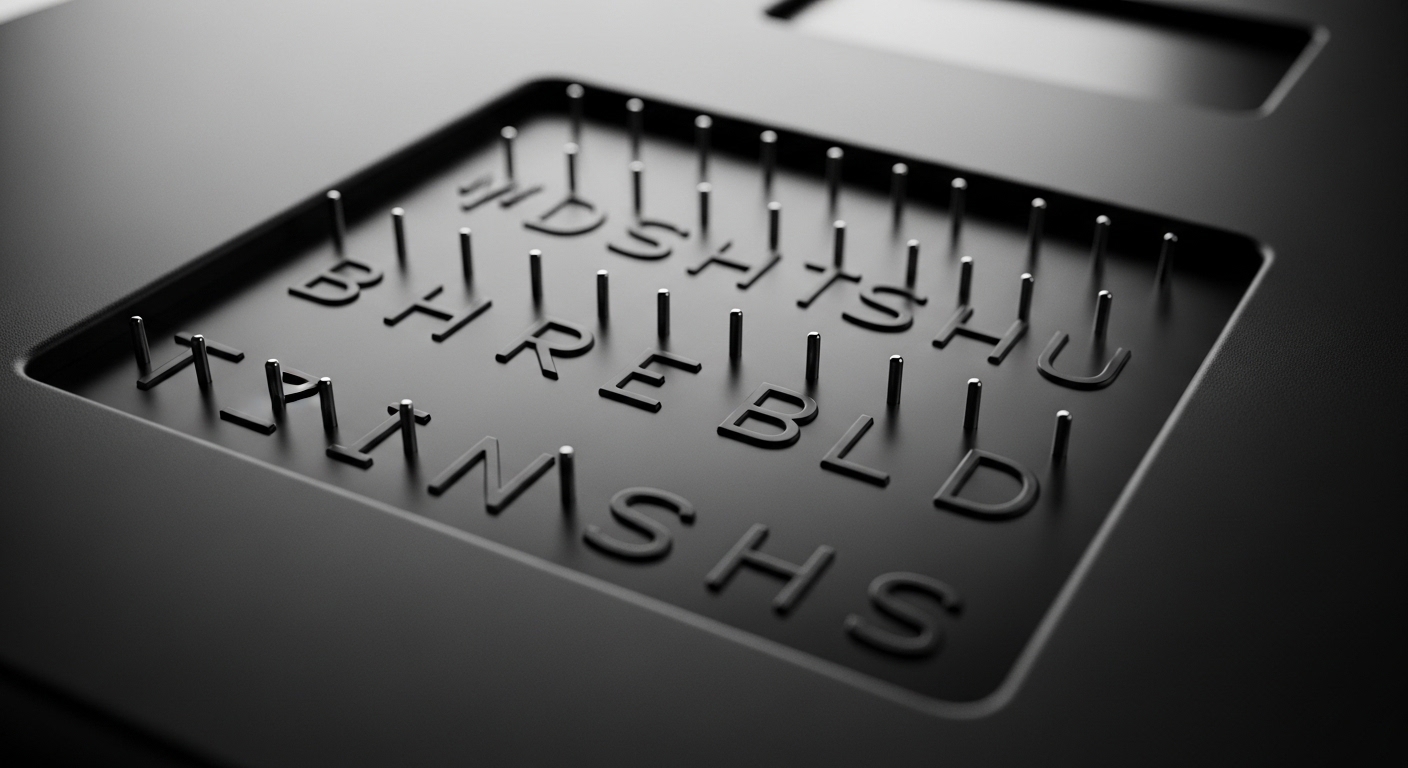
Braille displays are the less-discussed half of the equation. These are hardware devices with a row of small pins that rise and fall to form Braille characters in real time. A user reads a line, advances, reads the next. For someone who is both deaf and blind, a Braille display isn't an accessory — it's the only channel available.
The Accessibility Tree: The Hidden Backbone
When a browser loads a webpage, it builds two parallel structures: the DOM (Document Object Model), which developers are familiar with, and the accessibility tree, which most developers rarely think about. The accessibility tree is a simplified, semantically annotated version of the DOM that strips out presentational noise and exposes role, name, state, and value for every interactive element.
A button labeled "Submit" in the accessibility tree has a role of "button," a name of "Submit," and a state of "not pressed." The screen reader reads all of that. If a developer builds a button out of a styled <div> without adding the correct ARIA role, the accessibility tree sees a generic container — and the screen reader announces nothing useful.
The accessibility tree is the web as screen readers experience it. If your element isn't in that tree correctly, it effectively doesn't exist for millions of users.
How Screen Readers Navigate a Webpage
Keyboard Commands and Virtual Cursors
Screen reader users almost never use a mouse. Navigation happens through keyboard shortcuts, and the mental model is completely different from point-and-click browsing. JAWS and NVDA use a concept called a "virtual cursor" or "browse mode" — a separate cursor that moves through the accessibility tree independently of the actual keyboard focus on the page.
This means a user can press H to jump to the next heading, T to jump to the next table, or F to jump to the next form field. Experienced screen reader users navigate a long webpage in seconds by skimming headings, the same way a sighted user might visually scan for bold text or section titles. Anyone who has watched a proficient screen reader user work knows how disorienting it is at first — the speech rate is often cranked up to speeds that sound like an auctioneer.
That speed isn't a quirk. It's efficiency. Users who rely on screen readers full-time train their auditory processing to handle very fast speech, and slowing it down actually makes comprehension harder, not easier.
Landmarks, Headings, and the Reading Order Problem
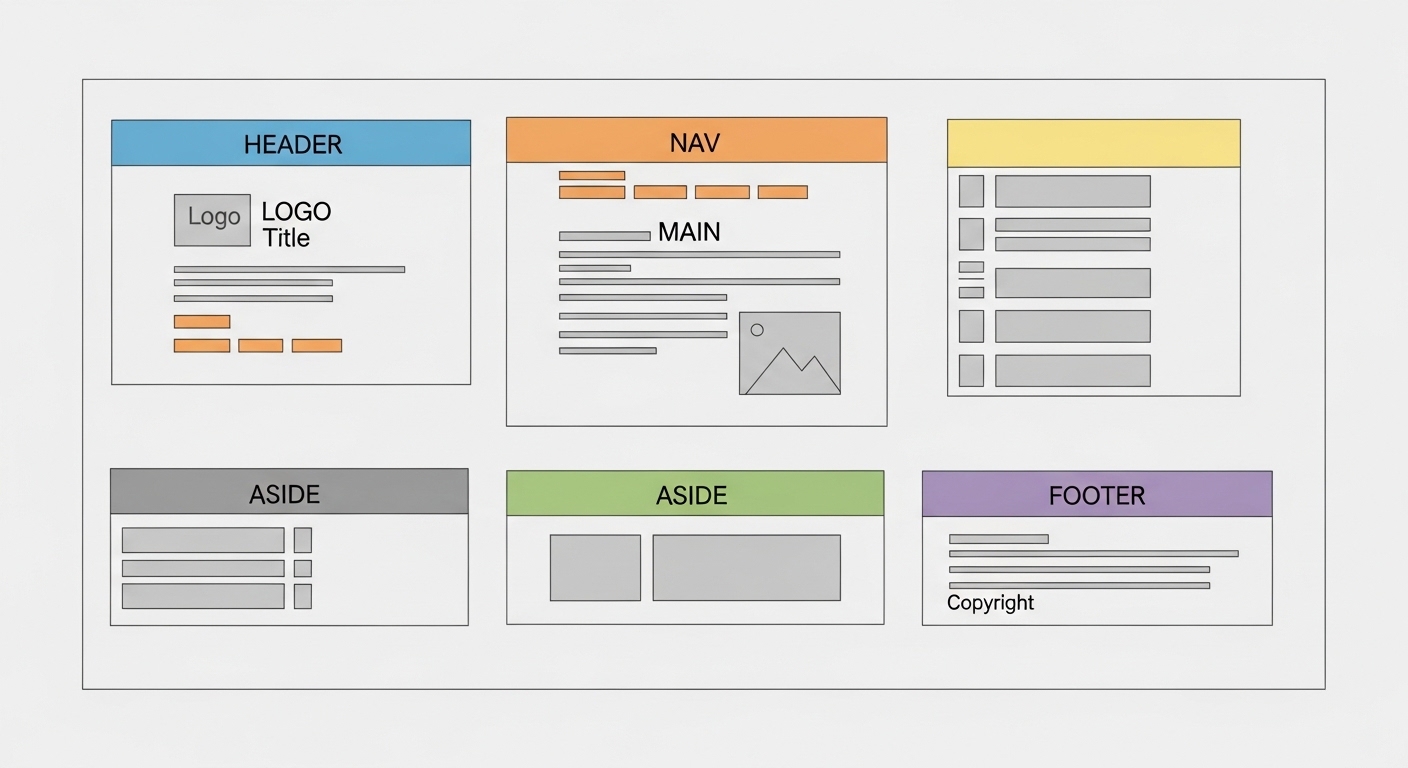
HTML5 introduced semantic landmark elements — <nav>, <main>, <aside>, <footer> — specifically to give screen readers navigational anchors. A well-structured page lets a user jump straight to the main content region, skipping the header and navigation entirely. A poorly structured page forces them to tab through every single link in the navigation bar before reaching anything useful.
Reading order is a subtle but serious problem. Screen readers read the DOM in source order, not visual order. CSS can make a sidebar appear on the left visually while it sits at the bottom of the HTML source. A sighted user sees a logical layout; a screen reader user hears the sidebar content dumped at the end, completely out of context. This is one of those mismatches that developers rarely catch unless they actually test with a screen reader turned on.
Where Accessibility Breaks Down — and Why
Images, Icons, and the Alt Text Gap
An image with no alt attribute is announced by most screen readers as the filename — something like "IMG_4872.jpg" — which tells the user absolutely nothing. An image with an empty alt attribute (alt="") is correctly treated as decorative and skipped entirely. The distinction matters enormously, and it's one of the most common errors on the web.
Icon fonts and SVG icons present a similar problem. A magnifying glass icon that represents "Search" needs either an aria-label or a visually hidden text label. Without it, the screen reader either skips it or announces the Unicode character name, which can be genuinely bizarre. There are real documented cases of screen readers announcing "BLACK MEDIUM SMALL SQUARE" mid-sentence because a developer used a decorative Unicode character as a bullet point without hiding it from the accessibility tree.
Dynamic Content and JavaScript-Heavy Interfaces
Single-page applications built with frameworks like React or Angular create a specific headache. When content updates dynamically — a notification pops up, a form error appears, a modal opens — the screen reader doesn't automatically know something changed. The page didn't reload; there was no new document to parse.
ARIA live regions solve this. A container marked with aria-live="polite" tells the screen reader to announce any content changes in that region when the user is idle. Mark it as aria-live="assertive" and it interrupts whatever the user is currently hearing. Getting this wrong in either direction is a real problem — too many assertive live regions and the user is constantly interrupted; too few and critical error messages are silently ignored.
A modal dialog that doesn't move keyboard focus inside itself isn't just an annoyance — it means the user is interacting with a window they can't perceive while the dialog sits there, invisible to them.

Why Screen Reader Compatibility Matters Beyond Disability
The Broader Population That Benefits
The assumption that screen readers are only for blind users is too narrow. People with low vision, cognitive disabilities, dyslexia, or motor impairments that prevent mouse use all benefit from accessible markup. Temporary situations matter too — a person recovering from eye surgery, or someone trying to consume content while driving through a car's audio system, is effectively in the same position as a screen reader user.
Search engine crawlers are also, in a meaningful sense, screen readers. They parse the accessibility tree and semantic structure of a page to understand its content. A page that's well-structured for screen readers tends to be well-structured for SEO. The two goals are not in conflict — they're almost perfectly aligned.
The Legal and Ethical Dimension
In many countries, web accessibility is a legal requirement, not a best practice. The Americans with Disabilities Act has been interpreted by US courts to apply to websites, and the European Accessibility Act has set enforceable standards across the EU. Organizations that have ignored accessibility have faced lawsuits, including well-known retailers and educational institutions.
(Opinion: The framing of accessibility as a "compliance checkbox" is one of the most counterproductive ideas in web development. The moment a team treats it as a legal risk to manage rather than a user need to meet, the quality of the implementation collapses. The best accessible websites are built by teams that have actually watched someone use a screen reader on their product — that experience tends to be clarifying in a way that no audit report is.)
Frequently Asked Questions
Do screen readers work on mobile devices?
Yes. Apple's VoiceOver works on iPhone and iPad, and Google's TalkBack is built into Android. Both use gesture-based navigation — swiping to move between elements, double-tapping to activate. Mobile accessibility has its own set of quirks, particularly around touch targets that are too small and custom gesture conflicts between apps and the screen reader itself.
Can a screen reader read PDFs?
It depends entirely on how the PDF was created. A PDF exported from a properly tagged Word document or InDesign file will have an underlying tag structure that screen readers can parse. A PDF that's a scanned image of a printed page is, from a screen reader's perspective, a blank document — there's no text layer at all, just pixels. OCR (optical character recognition) can sometimes help, but the results are inconsistent.
Does adding ARIA attributes always improve accessibility?
Not automatically — and this is a common misconception. Incorrect ARIA usage can actively make a page worse than using no ARIA at all. The first rule of ARIA is to use native HTML elements whenever possible, because browsers have already implemented their accessibility semantics correctly. Adding role="button" to a <div> without also handling keyboard events, focus management, and state announcements creates something that looks accessible in a code review but fails in real use.
The web was designed from the beginning as a medium that could be rendered in any environment — visually, aurally, tactilely. Screen readers aren't a workaround or an edge case; they're the technology that holds that original promise to account. Every unlabeled button and every heading-free wall of text is a small breach of that contract. And the strange thing is, fixing most of it isn't technically hard — it just requires someone to care enough to test it.



Comments
Post a Comment